

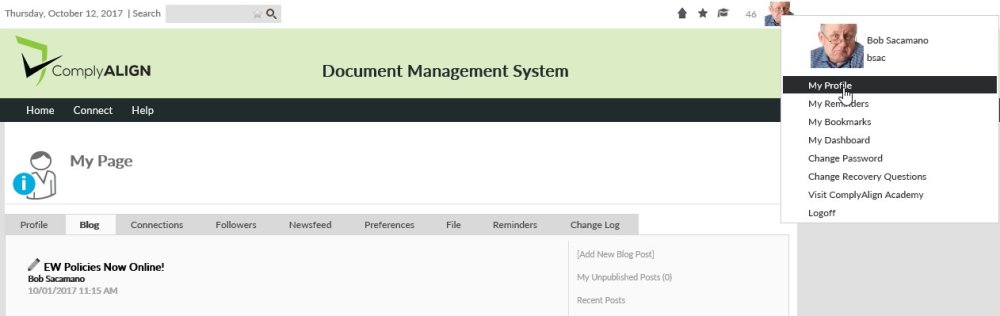
To start writing a blog, a user goes to their “My Page” by clicking on the User Info Dropdown in the upper right corner of the page and selecting My Profile. When on “My Page” click on the Blog tab
Click on [Add New Blog]. The user will be taken to the edit screen. They can choose to publish the blog right away by checking the check box next to Publish. The user can also leave the check box unchecked if they want to wait to publish to the Blogs page. They can also choose to allow other users to comment and/or like the blog post by checking the checkboxes.
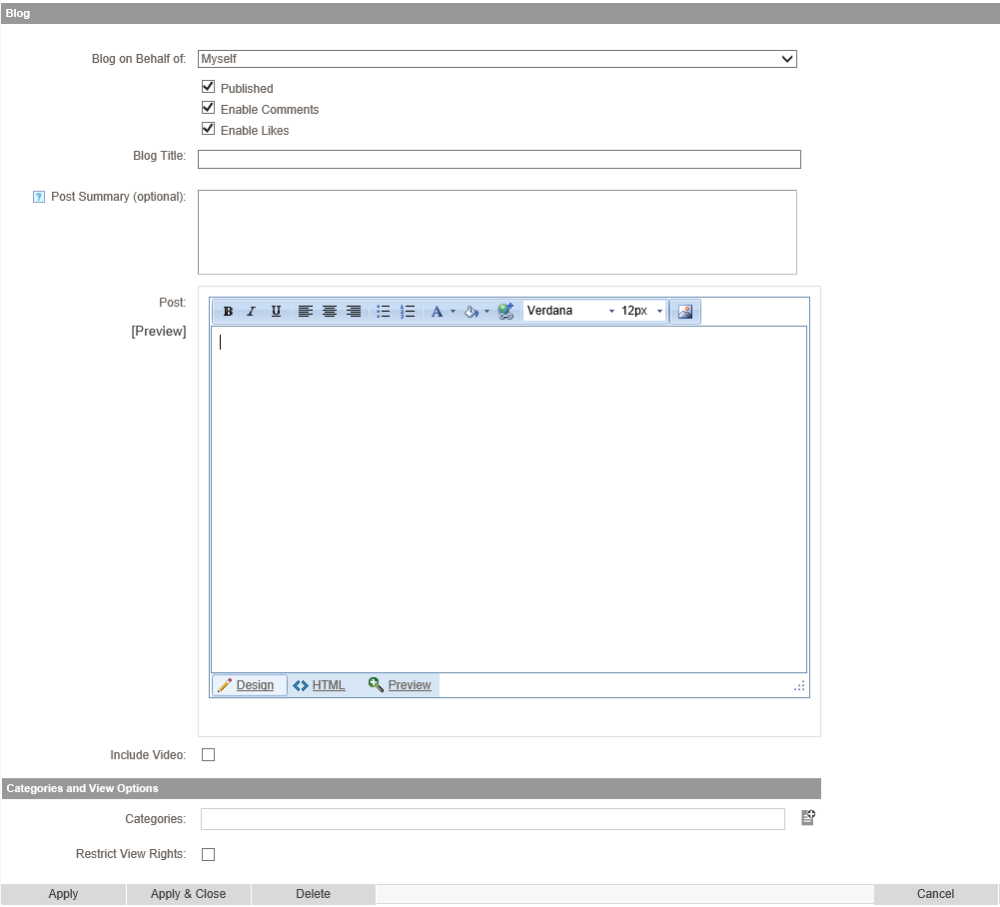
Add a title of the blog post in the Blog Title text box.
The Post Summary provides a way to have a short description of the blog that will show as notifications to people who are connected to you.
The text of the post goes into the HTML editor labeled, Post.
If you want to add an embedded video to your post, select the checkbox, Include Video. After checking the box, you’ll be provided an upload button and fields where you can determine the size of the video by percentage of the total page/pane width. the video player is designed to play .MP4, .OGV, .WEBM files / extensions by default. If you choose to upload/configure any other file formats within the Media Player component the file you upload will be converted to .MP4 format upon saving this screen. The conversion utility supports almost all known video and audio formats based on the capabilities FFMpeg tool used to do the conversion. To learn more about the FFMpeg tool search for FFMpeg on the internet.
View restrictions can also be added to an individual blog post by checking the checkbox at the bottom of the page. Then select either a Security role or individual users that can see this post.
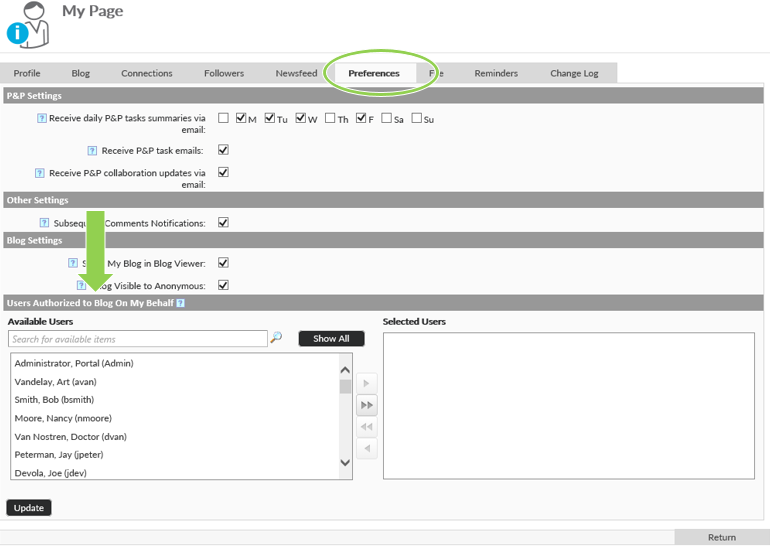
It is also possible to blog on behalf of either yourself or another user for whom you have permissions to do so. To give someone else the ability to blog on behalf of yourself, go back to “My Page” and select the Preferences tab. At the bottom of this screen there is a section labeled, Users Authorized to Blog on My Behalf. In the list selector below, double click the name of the user(s) you want to give permissions to publish blog posts on your behalf.
Post your comment on this topic.