

Before building any Quizzes, Administrators must create Quiz Categories. Quiz Categories enable users to define permissions such as the ability to design a quiz, take the quiz, and view the results of the quiz. Having multiple categories is necessary so that each department can assign different users to each permission for their quizzes.
Only Portal Administrators and Application Administrators can create Quiz Categories. To create a category, users will access the Administration Menu by clicking the gear icon (  ) at the top of the page.
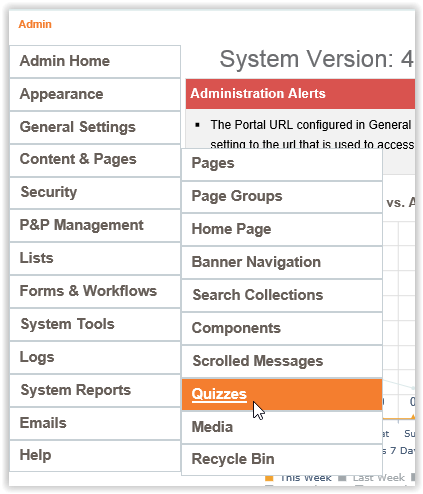
- In the left menu users will select Content & Pages, then Quizzes.
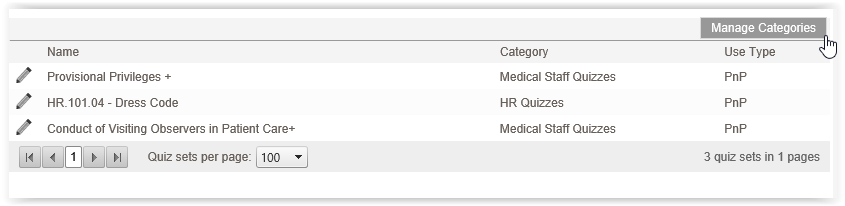
- The Quizzes screen is displayed, showing a list of the existing quizzes.
- To add a new category, users will click the Manage Categories button in the top right corner.
- The Quiz Categories screen is displayed. Users will click Add New Category.
- On the Add Quiz Category screen, users will complete the needed fields:
- Name – The name of the category to display when creating new quizzes
- Description – A description of the category, if needed.
- Quiz Designers – Selected users will be able to create and publish quizzes within the category.
- Quiz Results and Scores Access – Selected users will be able to access quiz results and scores for all quizzes within the category.
- Default Quiz Audience – Selected users that will be required to take quizzes published for this category by default. Note, this setting can be overwritten when publishing individual quizzes.
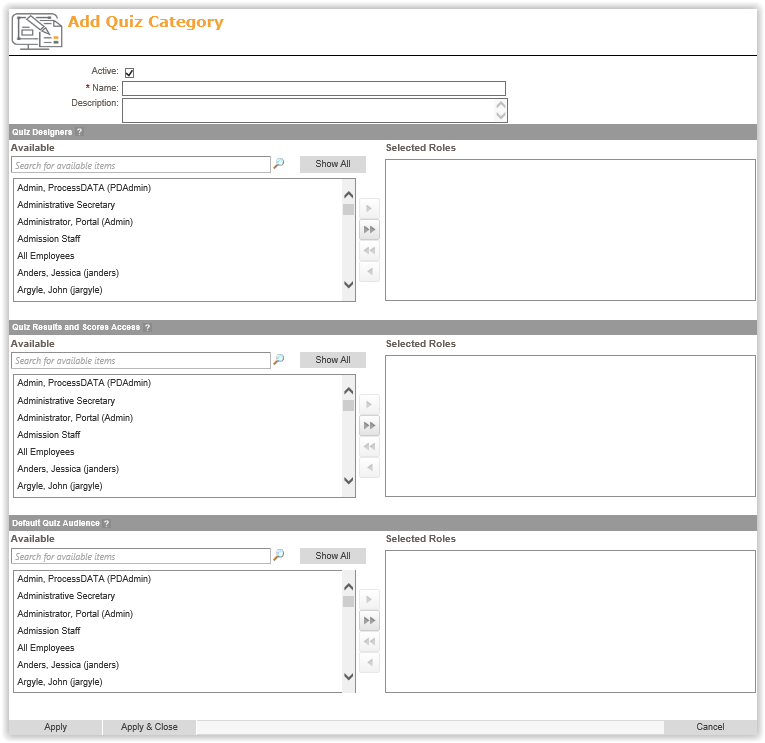
Click Apply & Close to save your Quiz Category.
Last modified:
Jul 10, 2023
Post your comment on this topic.