

Revisions can be initiated in the P&P Component by the Lead Author or Moderator of a document. To initiate a revision, the user may navigate to the document within the P&P component and use the options available under the Edit option in the Document Menu ( ), or click Document Pending Review or Documents Overdue for Revision on the Reminders screen.
Document Menu Access
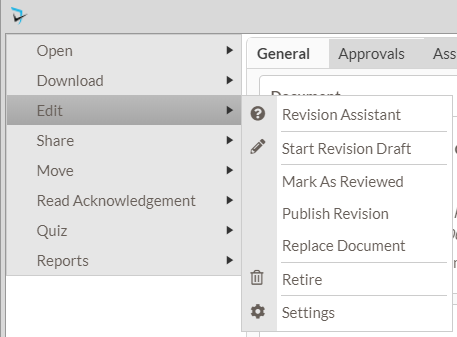
Users can select any of the following options:
- Revision Assistant – Opens the Revision Assistant page, which gives the user descriptions and what is affected upon selecting each option that could be taken as part of revising a document. This option is designed to assist the user in deciding which option to select, should they not be familiar with the options.
- Start Revision Draft – Starts a new revision draft that will need to be authored, approved, and published using the configured workflow.
- Mark as Reviewed – Records that the document has been formally reviewed and does not need to be revised.
- Publish Revision – Uploads and immediately publishes a document revision and skips approval workflow.
- Replace Document – Replaces the currently published document without affecting version number, effective or review dates, or requiring approval workflow.
- Retire – Removes a document from the active document listing. Document moderators will receive an email notification with the retire details: date retired, user who retired the document, and retire reason comments.
- Settings – Enables a user to make changes to the settings for the document including title, description, effective and next revision dates, workflow role assignments, and attached or related documents.
Reminders Access
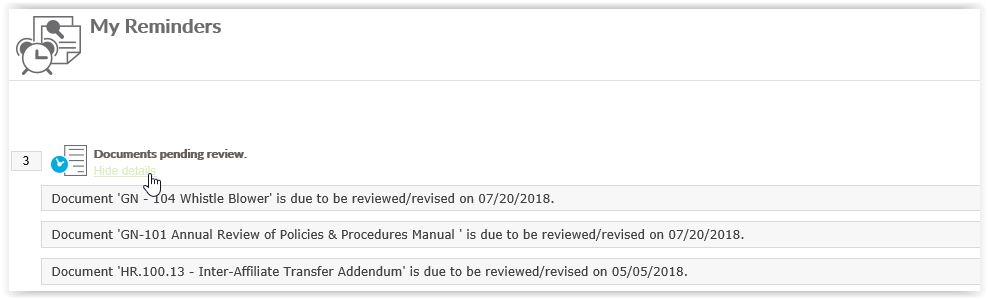
Using the reminders will open the Revision Assistant where the user can choose from Start Revision Draft, Mark as Reviewed, or Publish Revision.
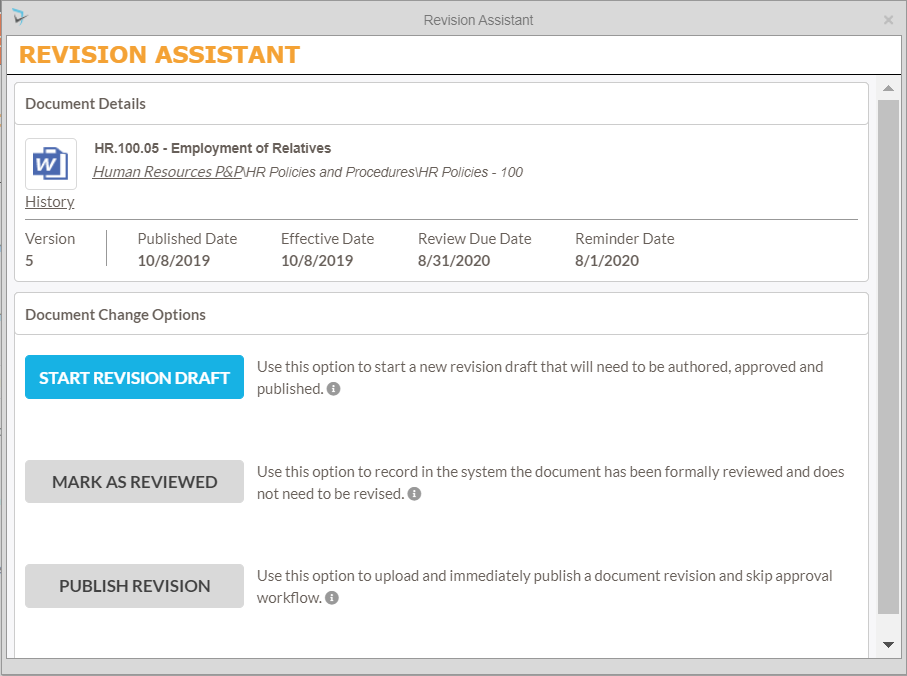
- Start Revision Draft – Starts a new revision draft that will need to be authored, approved, and published using the configured workflow. The document will be moved to the Authoring stage of the revision workflow.
- Mark as Reviewed – Records that the document has been formally reviewed and does not need to be revised. Review dates are updated, but no new document is published.
- Publish Revision – Uploads and immediately publishes a document revision and skips approval workflow.
Last modified:
Jul 10, 2023
Post your comment on this topic.