

When revising a policy it is sometimes necessary to have a supporting document that shows the changes that have been made. The policy manager has a feature where lead authors are required upload a final draft with no redline markup along with a document with redline markup.
Setup
The Redline Feature can be activated on the component, folder, or document level. To activate on the component level, go to P&P setup in the Component Menu ( ). On the General tab, check the checkbox for Require Redline. This setting can also be found in the Document Settings for each document or the Folder Settings on the folder level.
Uploading a Redline Document
Once the Redline Feature is activated for a document, the Lead Author will have to upload two versions of the policy draft when in the Authoring stage. The redline document can be created by using the Track Changes feature in Microsoft Word. As changes are made, Word will create markup as to what changed. After the changes are made, save the document as is. Then accept the track changes so that all markup is cleared, and save another copy with a different name (This is for the final draft of the document).
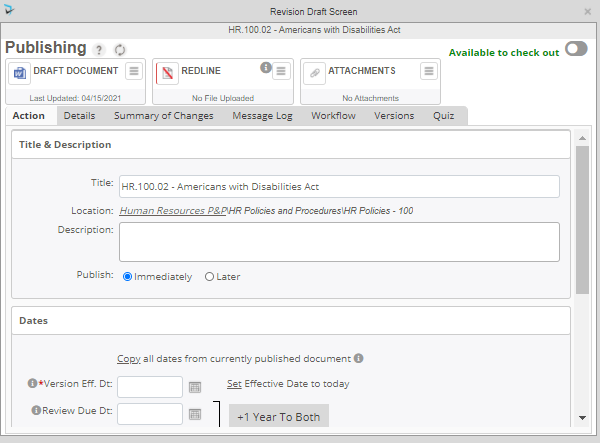
On the Draft Screen, there will be a section at the top of the screen displaying redline documents. Click the Redline menu to view, replace, or copy to draft.
Post your comment on this topic.