

Overview
Sequential approvals allows for having multiple approval steps. This is especially useful for when a manager has to give the final approval after a committee reviews a policy. All approvers in one step have to approve the policy before it is sent on to the next step of approvals.
Setup
To setup sequential approval steps, access the P&P setup or Document Settings screens to access the roles. Scroll to the Approvers section and click on Add Approval Step link on the right side of the section. You can click on this link as many times as need to add more steps.
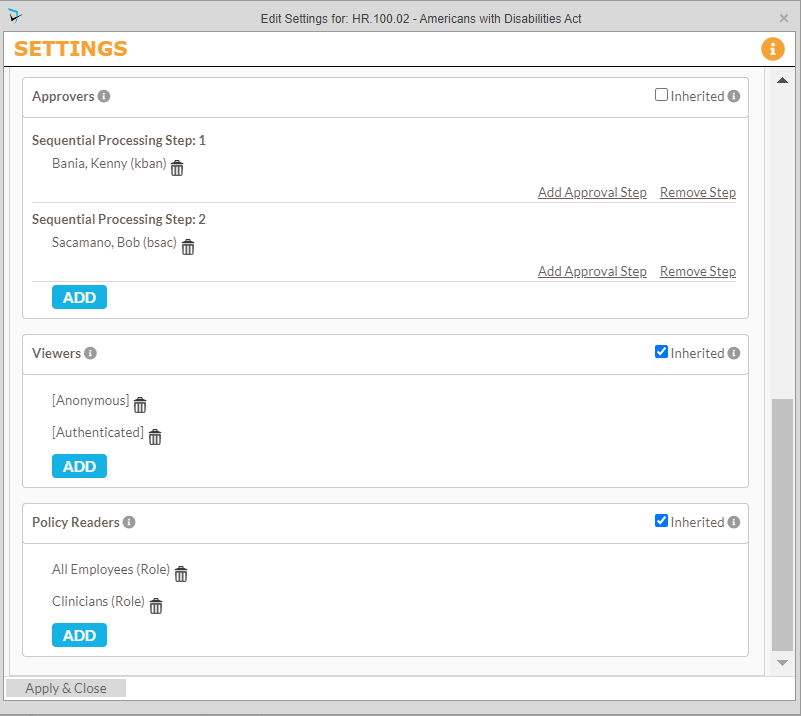
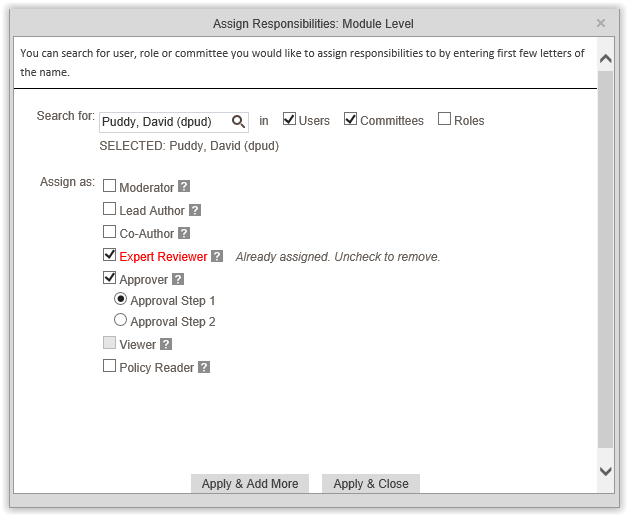
Then click on the  button to add users. Start typing the name of the approvers one by one in the Search For text box. Select the users then select the corresponding approval step radio button. Click Apply and Close on this screen as well as the Roles and Assignments screen to save the changes.
How to Skip an Approval Step
There may be cases where the moderator may have to skip an approver. This could be because the approver is on leave and will not be able to login to submit their own approval. In cases like this, the moderator can open the draft screen of the policy and navigate to the Workflow tab. Under each approver icon there is a box with their initials and a menu. Clicking on this give the moderator the option to approve or decline on behalf of that person.
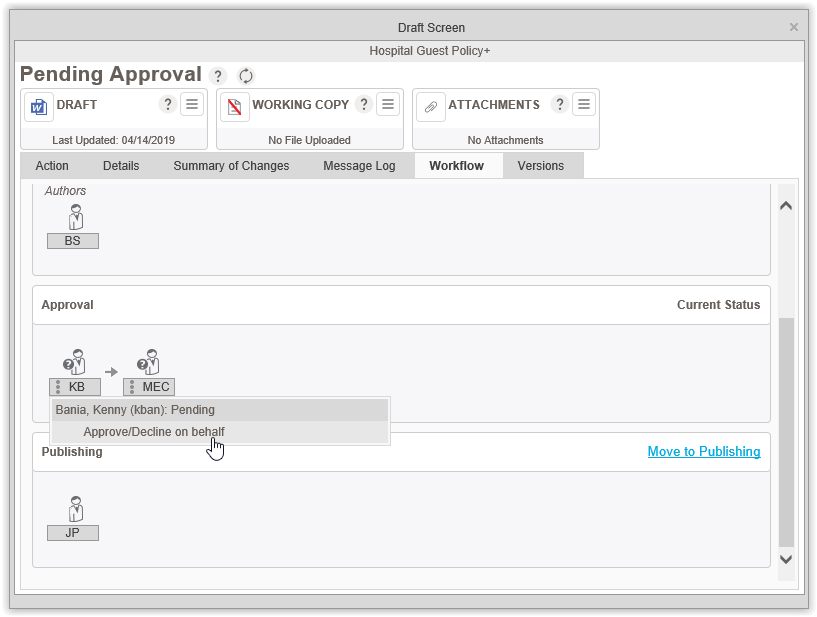
A popup will appear where the moderator can approve or decline the policy. If they decline they have to put a comment in the text box.
Post your comment on this topic.