

Once a quiz design is created it can now be published for other users to take the quiz. If a policy had just been revised and there is a quiz ready to be published for that policy, the quiz designers will be notified to also publish a quiz for the policy. In order to publish a quiz, the user must be logged in as a Quiz Designer for the Quiz Category in use. Navigate to the policy to publish the quiz. Users will open the document menu for the policy, select Quiz, then Settings.
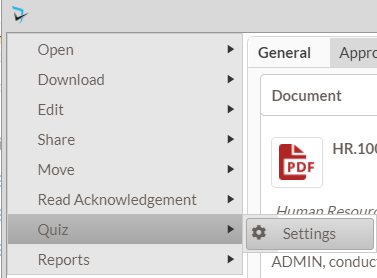
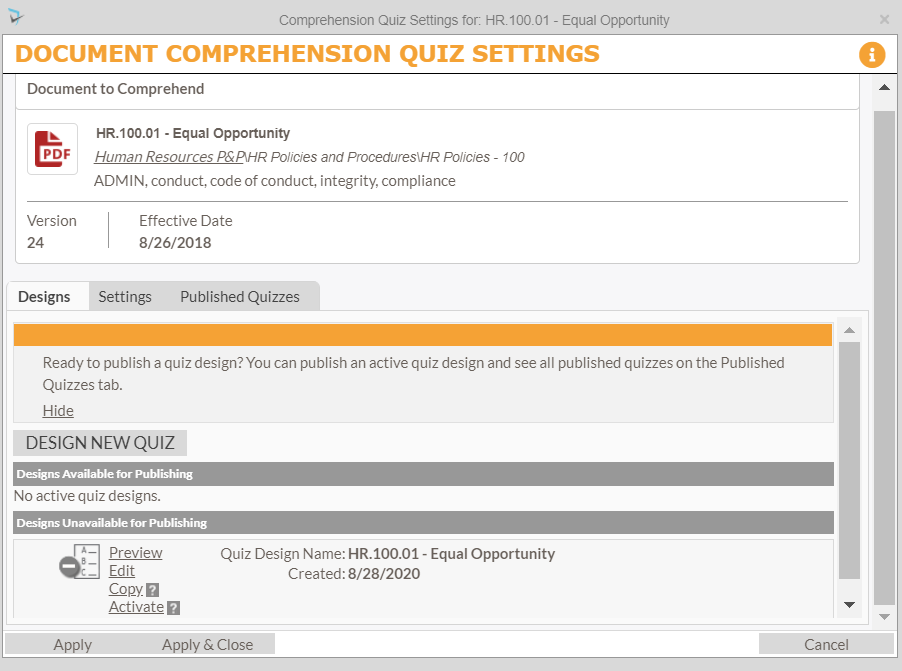
The Document Comprehension Quiz Settings is displayed. Users will see Quiz Designs for this policy. You might see that the design has a red strike-through the icon for the quiz. Users must click on the Activate link next to the icon in order to publish.
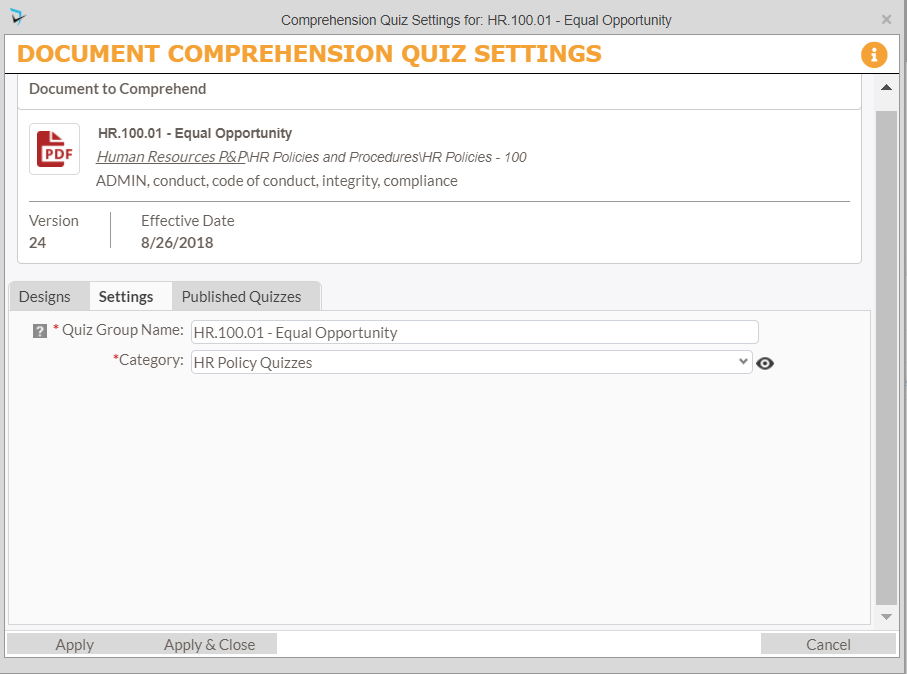
After activating the Quiz Design, the user will click on the Settings tab to define the Quiz Group Name. This will be defaulted to the name of the policy the quiz is affiliated with. The purpose of the Quiz Group is to allow multiple quizzes for different versions of the policy. Users will also have to select the Quiz Category so that the correct permissions are enabled for the Quiz Results & Score Viewer and Default Audience. Clicking the Eye icon will display which users are assigned to which quiz role.
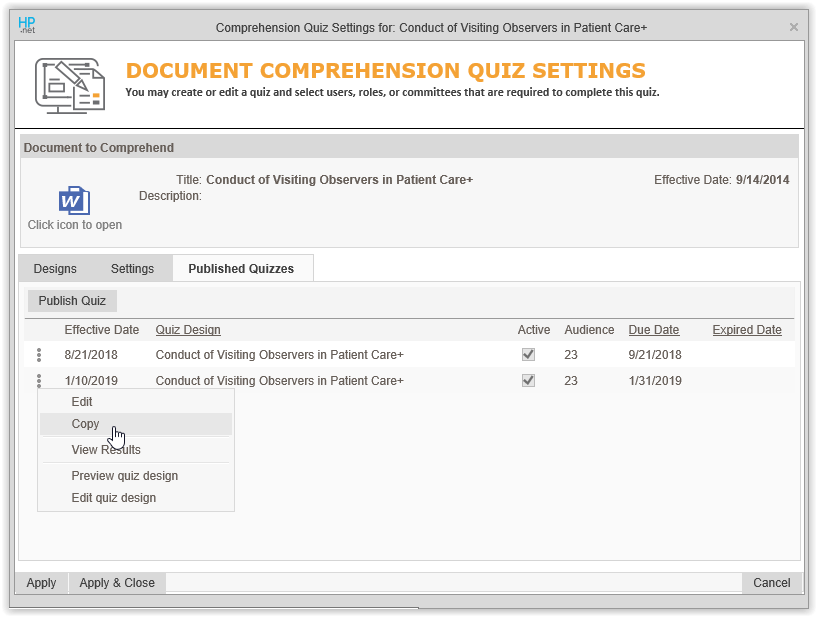
To publish the designed quiz, the user will select the Published Quizzes tab and click on Publish Quiz button. The Quiz Publishing screen is displayed. On the Quiz tab, users fill out the following formation:
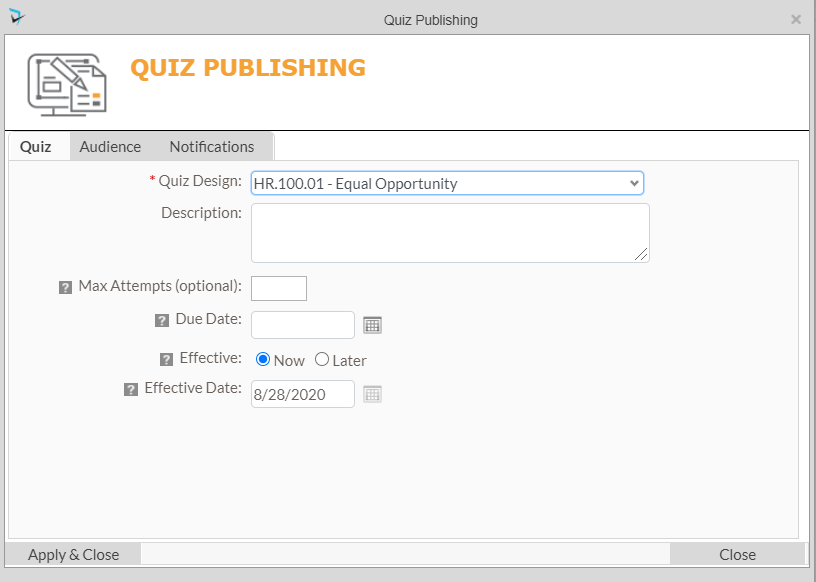
- Quiz Design – Select the quiz design from the drop down list to publish.
- Description – Optionally, add a description for the quiz.
- Max Attempts (optional) – This is maximum number of times an audience member can take the quiz and fail before the Quiz Designer needs to be contacted to reset their attempts or other internal actions that may be required in this event.
- Due Date – An option that will give the audience the date by which you expect them to complete the quiz. If this date passes the audience members who have not taken the quiz get a reminder of an over due quiz they have to take.
- Effective – Allows you to publish the quiz now or at a later date.
- Effective Date – The date the quiz is published and made available to quiz takers. To select a specific date, choose ‘Later’ above.
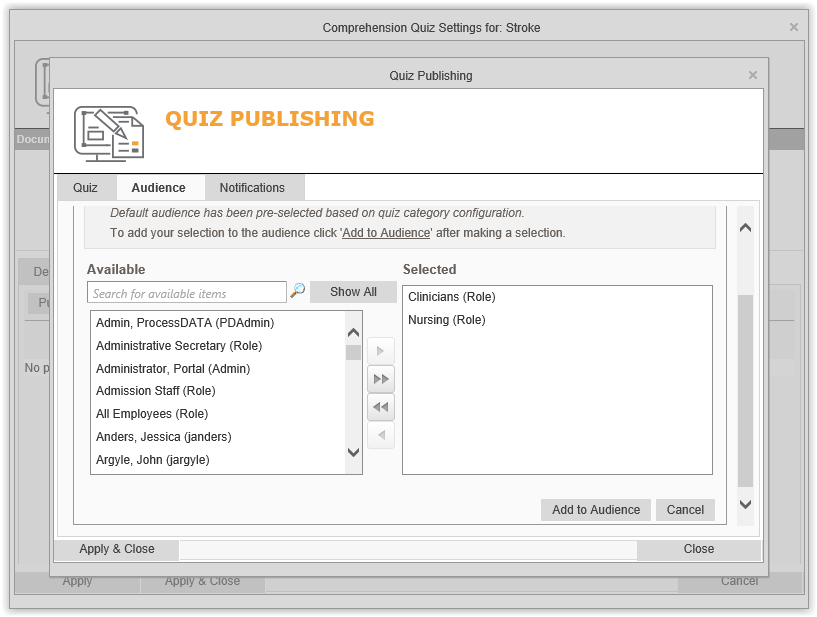
After filling out the Quiz tab, the user will navigate to the Audience tab. The user will choose an audience by clicking on the Add Audience button. A list selector with groups or individual users to be added as audience members for the quiz will be displayed. By default, the audience roles that were selected for the Quiz Category will be selected. Scroll down to click the Add to Audience button.
The Advanced link next to the Add Audience button gives the user the following options:
- Audience is fixed – If a Security Role is selected for an audience, only members of the role will be added to the audience. No new users added to the role will be added to the quiz audience.
- Audience will grow with role membership – If selected, as brand new users are added to the Security Role chosen as the Audience after a quiz is published, they WILL be required to take the quiz.
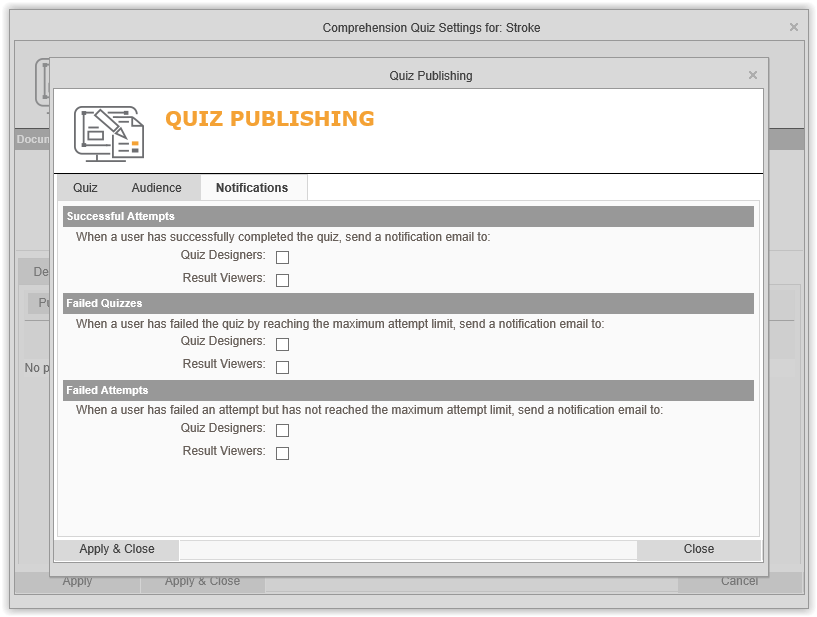
In the Notifications tab the user may select when email notifications go out to the Quiz Designers and/or the Result Viewers. Selecting these items will generate whenever the quiz is completed successfully by a user, failed the quiz by reaching the maximum attempts, and/or for each failed attempt even if they haven’t reached the maximum attempts limit.
The user will click on Apply & Close to finish publishing the quiz. Quiz Audience members will be notified that they have to complete the quiz and their reminders will be populated.
Post your comment on this topic.