

To post a new forum message first access the Forum Page. You may first have to select which forum you want to post to if there are more than one, other wise the forum will already be displayed like the image below.
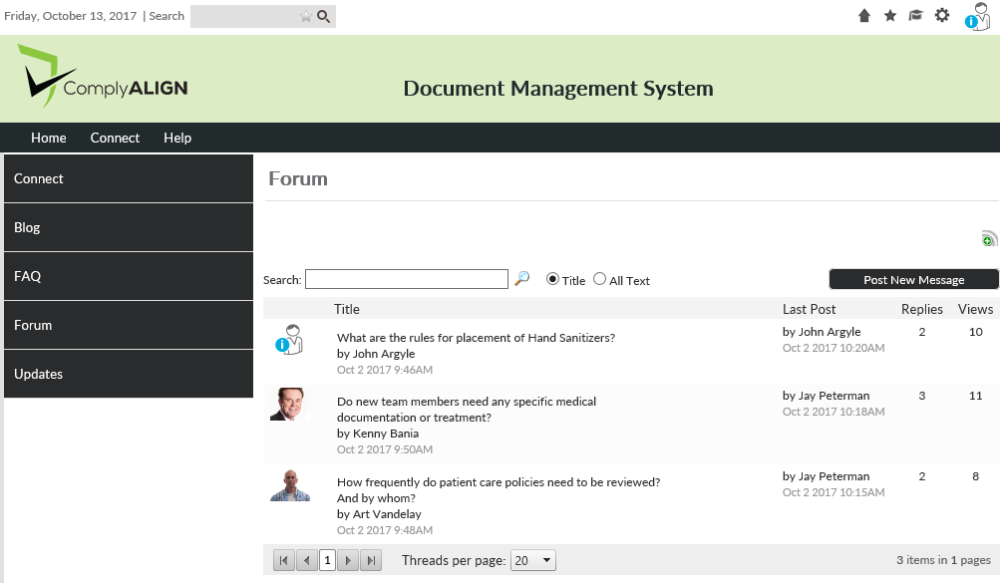
To post a new thread, click on the Post New Message button.
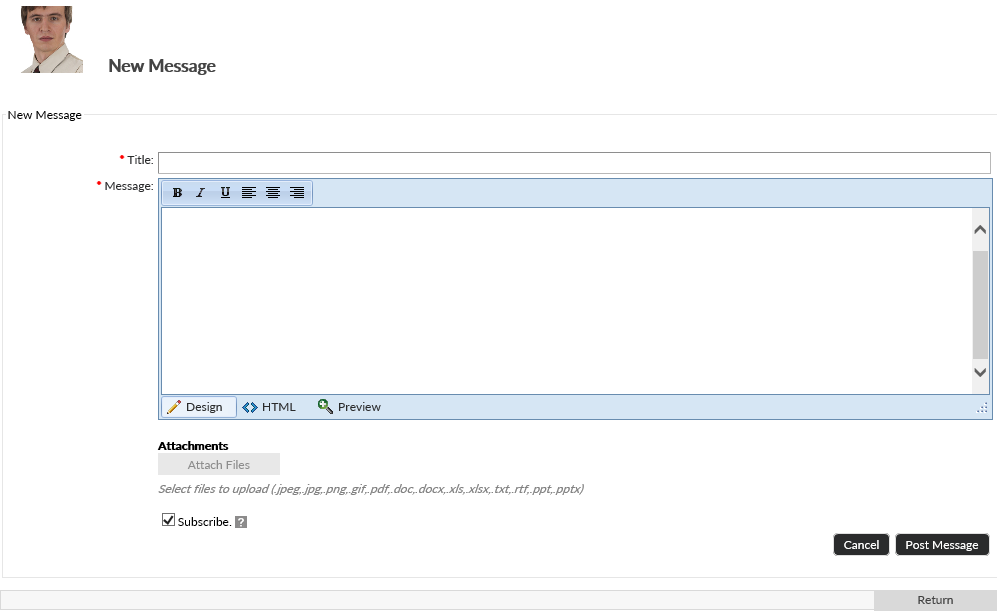
This will bring you to the New Message screen. Here, you must define a title for the message in the first text box labeled Title. In the big box labeled Message, type up your message that you will want to post.
Beneath the Message section, you may choose a file to display with the post by clicking on the Attach Files button. The text under the button shows you what file types you can upload.
The check box at the bottom of the page labeled Subscribe can be checked if you want email notifications whenever someone replies to your post. Click on the Post Message button in the bottom right corner to finish.
You may get a notification saying that the post needs to get approved before it gets published to the end users. People assigned as forum moderators by the Applications Administrator will have to approve the post before it gets published. Forum Moderators will receive an email with a link back to a page on Policy Manager to approve the forum post.
Post your comment on this topic.