

To manage notices you need to be logged in as a Category Moderator for at least one category. Category Managers can find a list of notices that have created under their category. Here, they can search for notices that they have created including options for active, inactive, expired, and non-pending (notices where everyone has accepted the notices) notices.
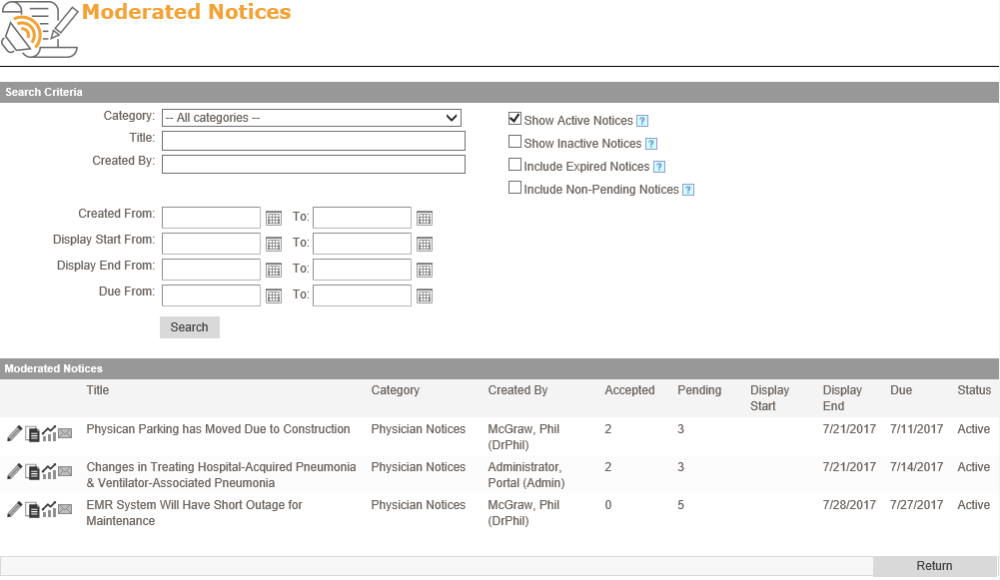
Below the search criteria you will see a list of Moderated Notices. In this list, each notice will have a series of icons
![]() – Edit this notice
– Edit this notice
- This screen will allow you to change any content or roles for the notice. It will also allow to delete (only if saved in draft mode or no one has accepted the notice) and Email Pending audience members.
![]() – Copy/Clone the notice
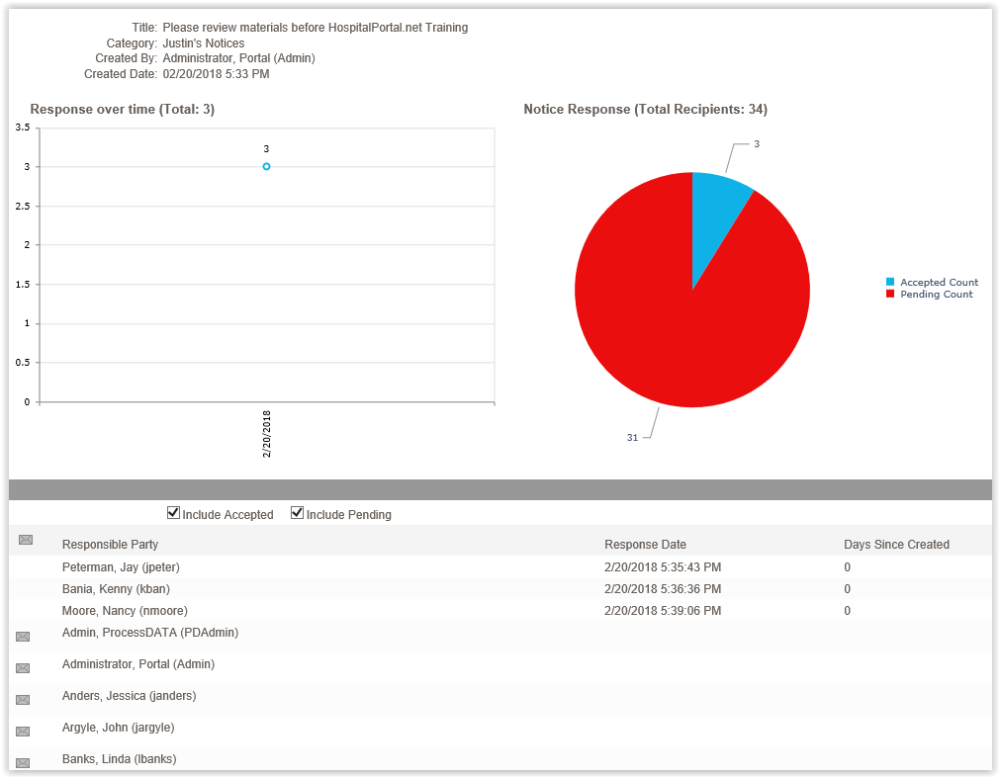
– Copy/Clone the notice![]() – This will display a new page with a couple of charts that indicate who has and has yet to accept the given notice. It will also provide a list of users that the notice was for that shows the responsible party, Response Date, and Days Since Created. Next to each name is an Email icon (
– This will display a new page with a couple of charts that indicate who has and has yet to accept the given notice. It will also provide a list of users that the notice was for that shows the responsible party, Response Date, and Days Since Created. Next to each name is an Email icon (![]() ) that the Moderator can click on to resend the notice email to that user.
) that the Moderator can click on to resend the notice email to that user.
- You may also filter what appears in the list of audience members by ones who accepted and/or ones who are still pending acceptance by using the checkboxes above.
![]()
- You may also filter what appears in the list of audience members by ones who accepted and/or ones who are still pending acceptance by using the checkboxes above.
![]() – This will send an additional email reminder to the Audience of the notice.
– This will send an additional email reminder to the Audience of the notice.
 – Edit this notice
 – Copy/Clone the notice
 – This will display a new page with a couple of charts that indicate who has and has yet to accept the given notice. It will also provide a list of users that the notice was for that shows the responsible party, Response Date, and Days Since Created. Next to each name is an Email icon (
 ) that the Moderator can click on to resend the notice email to that user.
Last modified:
Jul 10, 2023
Post your comment on this topic.