

To navigate to the setup page, users will click the Setup link in the menu bar.
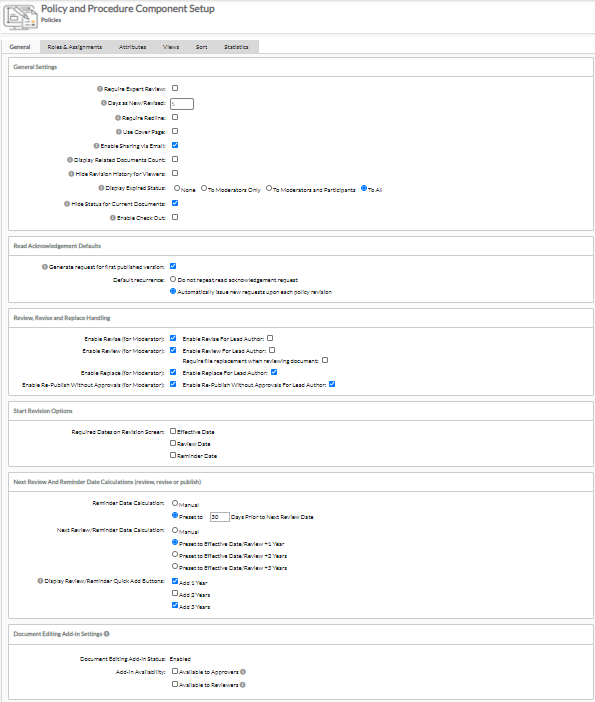
The P&P Setup screen is used to specify default general options for the component including:
- Allowable and default views
- Expert review option
- Redline option
- Cover Page option
- Folder Animation option
- Moderators
- Lead Author
- Co-Authors
- Expert Reviewers
- Approvers
- Viewers
- Policy Readers
General Tab
| Attribute | Description |
|---|---|
| General Settings | |
| Require Expert Review | When checked, the documents in the tree are required to go to Expert Reviewers for a defined period of time prior to Approval |
| Days in Review (applies to folder or document only) | This is the number of days that a document will wait in the Expert Review Status. |
| Days as New | Number of days the  and and  icons will appear next to the newly published documents icons will appear next to the newly published documents |
| Require Redline | When checked, Lead Author will be required to upload a Redline version of the document when submitting for Expert Review or Approval (Redline is defined as a document that highlights the changes between the current revision and the previous version). |
| Use Cover Page | When checked, a cover page including key information about the document such as Authors, Approvers, Review Due Dates, Title, and Keywords will open along with the document. |
| Enable Sharing via Email | Gives a menu option to share a link to the document through an email. |
| Display Related Documents Count | If checked, documents that have 1 or more related documents will display the related documents count to the right of the document title. NOTE: Enabling this setting may cause some performance issues when loading large amounts of documents |
| Hide Revision History for Viewers | If checked, the revision history will only be accessible to participants in the P&P review, authoring and approval process. |
| Display Expired Status | When selected, a graphical indicator will be displayed next to the document title for the selected users, indicating expiration status of policies (Red: Past Due, Yellow: Due for review). |
| Hide Status for current documents | Will hide the status indicator for current documents |
| Enable Check Out | Limits document editing to one author at a time. While checked out, no other users may edit the document. |
| Read Acknowledgement Defaults | |
| Generate request for first published version | Automatically generate a read acknowledgement request when uploading active documents or publishing the first version of a document via draft revision screen. The request will be distributed to default readers assigned to the folder where the documents reside. |
| Default recurrence | Enables moderators to select a read acknowledgement for one time, or recur with every new revision of the document. |
| Review, Revise and Replace Handling | |
| Enable Revise (for Moderator) | Enables/disables the Revise feature for moderators. If checked you may also enable/disable Revise for Lead Authors. |
| Enable Review (for Moderator) | Enables/disables the Review feature for moderators. If checked you may also enable/disable Review for Lead Authors. You can also make it required to upload a new version of the file. |
| Enable Replace (for Moderator) | Enables/disables the Replace feature for moderators. If checked you may also enable/disable Replace for Lead Authors. |
| Enable Re-Publish Without Approvals (for Moderator) | Enables/disables the Publish Revision feature for moderators. If checked you may also enable/disable Publish Revision for Lead Authors. |
| Start Revision Options | |
| Required Dates on Revision Screen | When checked, on the revision screen, the moderator or lead author is required to define the key dates before starting the revision by for the Effective Date, Review Date, and/or Reminder Date. |
| Next Review And Reminder Date Calculations (review, revise or publish) | |
| Reminder Date Calculation | The system can automatically complete the reminder date field based on the specified number of days before the chosen Review Due Date, or users can enter the date manually. |
| Next Review/Reminder Date Calculation | On the publishing step, the system can automatically add 1, 2, or 3 years to the review/reminder dates or users can enter the date manually. |
| Display Review/Reminder Quick Add Buttons | Determines which buttons are displayed for updating Review and Reminder dates when reviewing, revising, or replacing a document. |
| Document Editing Add-in Settings | |
| Document Editing Add-in Status | Displays the status of Add-in editing feature. Must be enabled to make any additional changes here. |
| Add-in Availability | Enables Expert Reviewers and/or Approvers to use the Inline Editing feature. |
Roles & Assignments
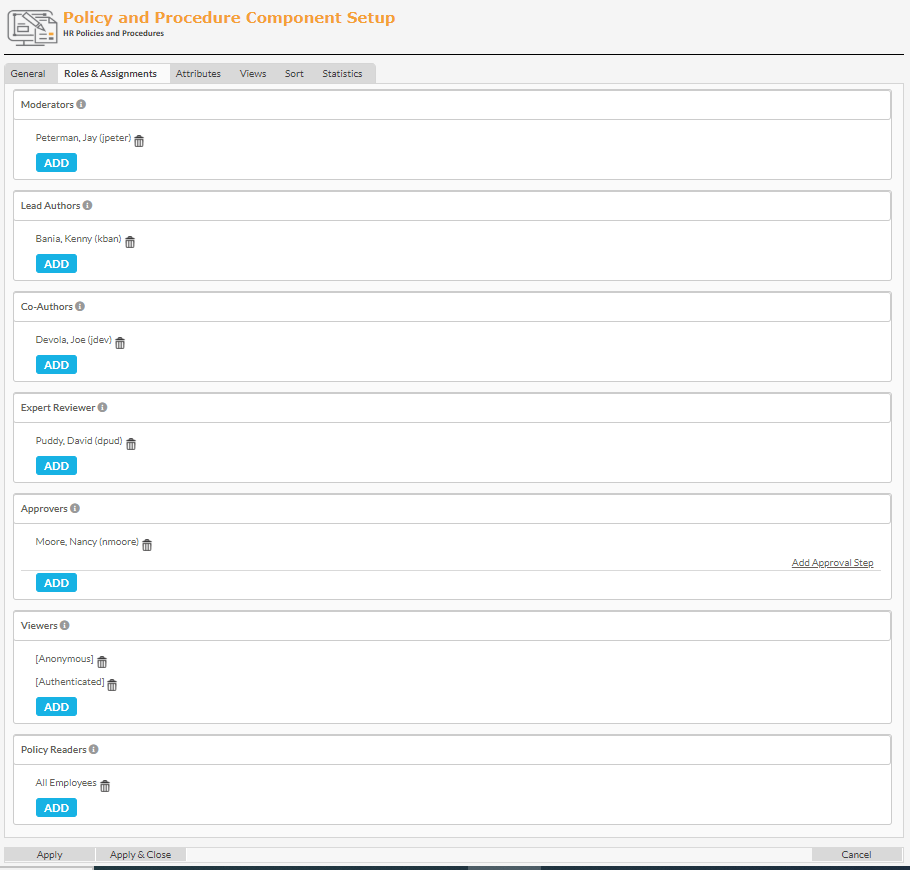
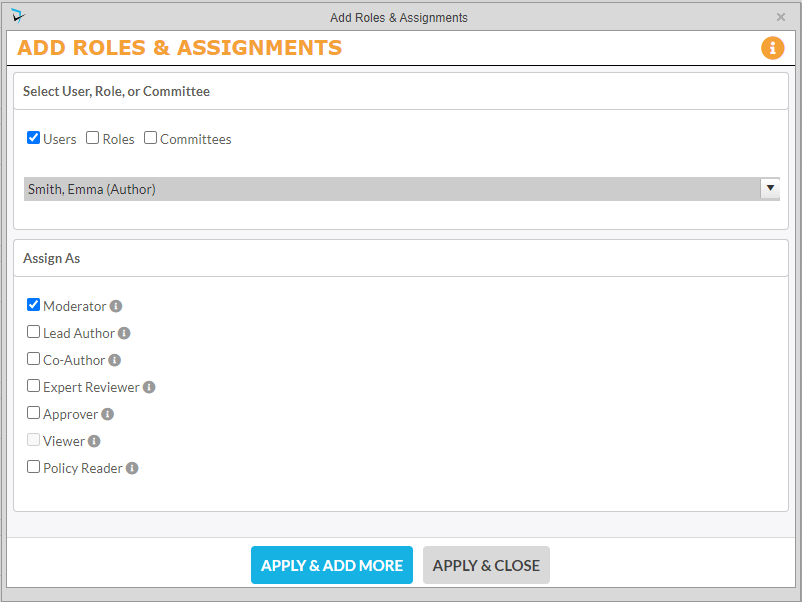
To add a member to a role, users will click on the  icon under the role name. A popup will appear allowing users to search for users, roles, or committees (roles and committees are not available for Moderator or Author) to add. Use the search function to find the appropriate user, role, or committee. Finally, the user selects the check box(es) corresponding to their role and click the appropriate Apply option at the bottom of the screen.
Attributes
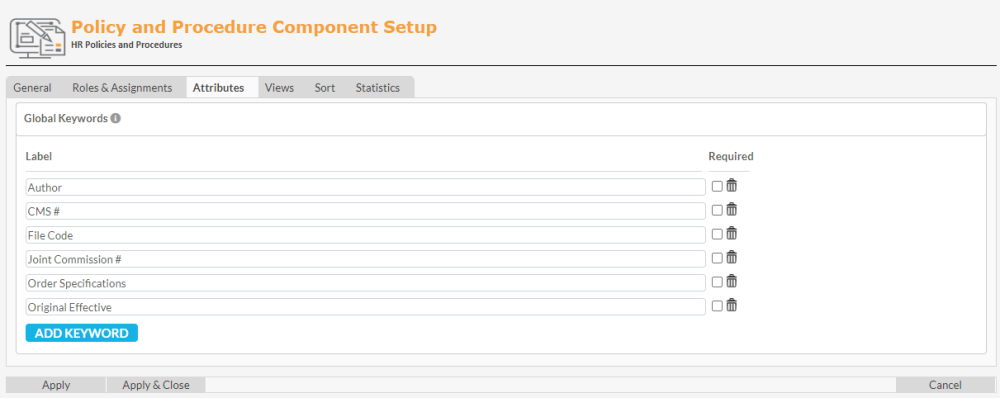
Labels for Global Keywords are defined on this tab. Moderators and Administrators can add or remove additional Global Keywords, and make any keyword required for all documents.
Views
Default view of the policy documents is set on this tab. First, users select the Default View; then update the Allowed Views (Give permission for users to use other views).
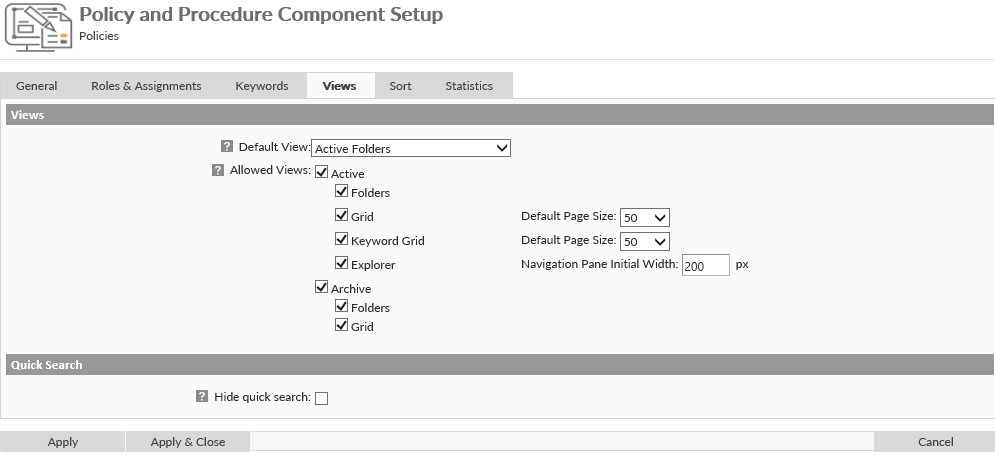
Views available include:
| Folder View | Displays a tree that displays folder structure. Click on the “+” to expand folders. 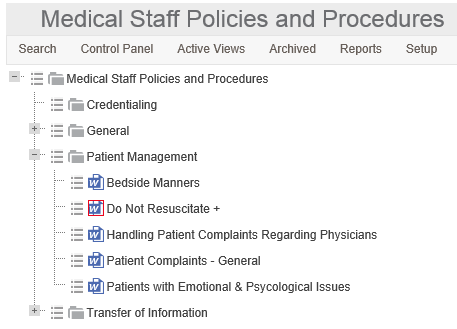 |
| Explorer View | Displays the folder structure in a left navigational pane. When a folder is selected in this pane, the contents of that folder are displayed in the left pane.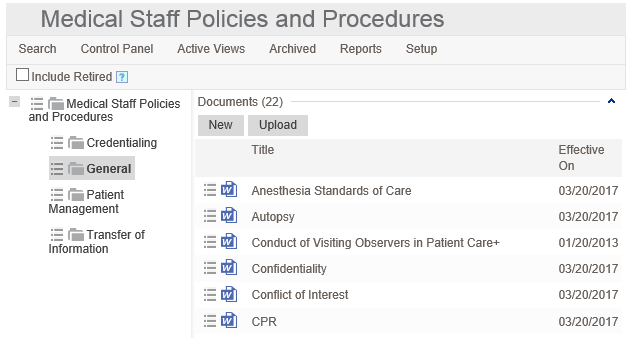 |
| Grid View (Keyword Grid View) | This view removes folders to view all documents in a list that includes documents’ original effective date, version effective date, reminder date, next review due date, and Reviewed On date. The Keyword Grid view also includes global keywords attached to documents.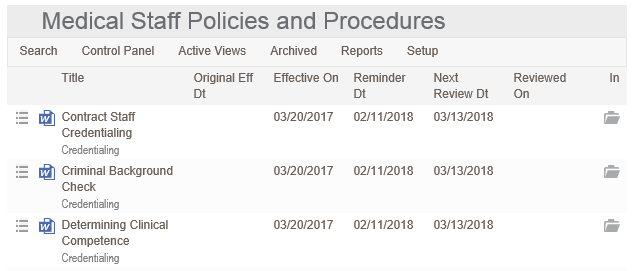 |
| Archived Folder View | Displays a folder view of archived documents. If there is a folder with a Word or PDF icon on it, it means that this document is currently published. The documents under that folder are past revisions of the document. If the folder is a normal gray folder, the documents in that folder are versions of a fully retired (archived) policy.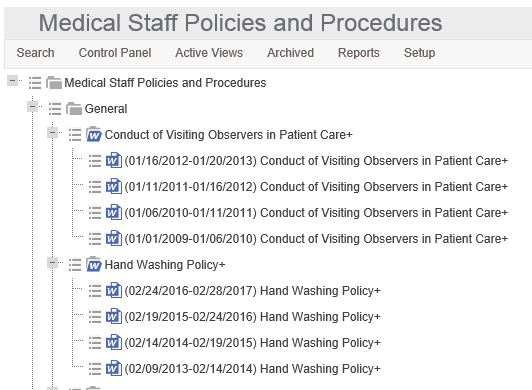 |
| Archived Grid View | Displays archived documents in a view similar to the normal Grid View. Additionally this view includes search criteria for searching archived documents, and the Archived date for each document.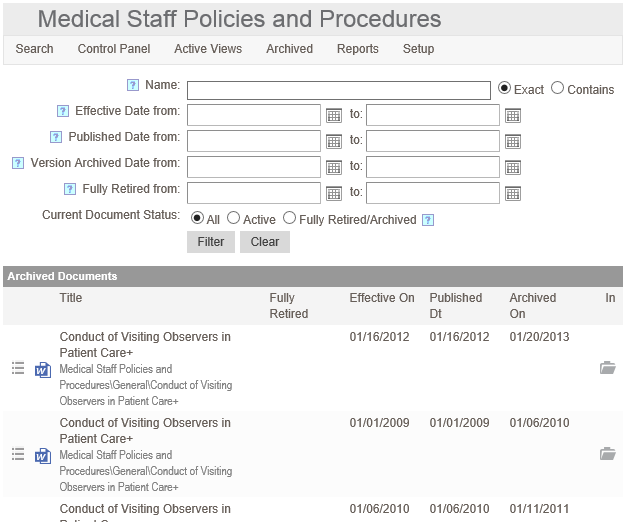 |
Sort
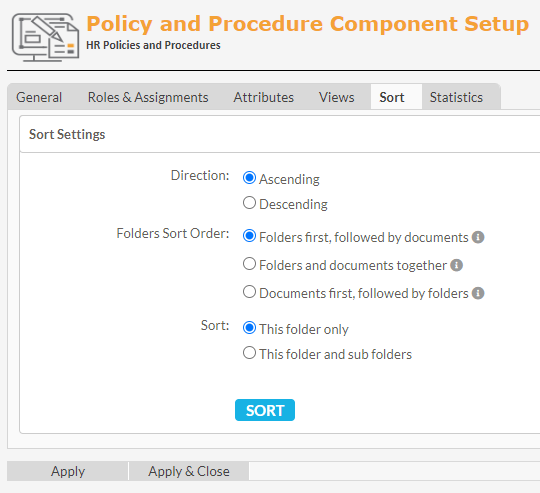
The default sorting of documents is controlled on this tab.
Direction – Sort can be set in ascending or descending order.
Folders Sort Order – If folders and documents will both be added to the same folder level, users can control how the information is sorted.
- Folders first, followed by documents.
- Folders and documents together
- Documents first, followed by folders
Sort
- This folder only – Sort options will apply to this folder only, but not any subfolders.
- This folder and subfolders – Sort options will apply to this folder, and any included subfolders.
Statistics
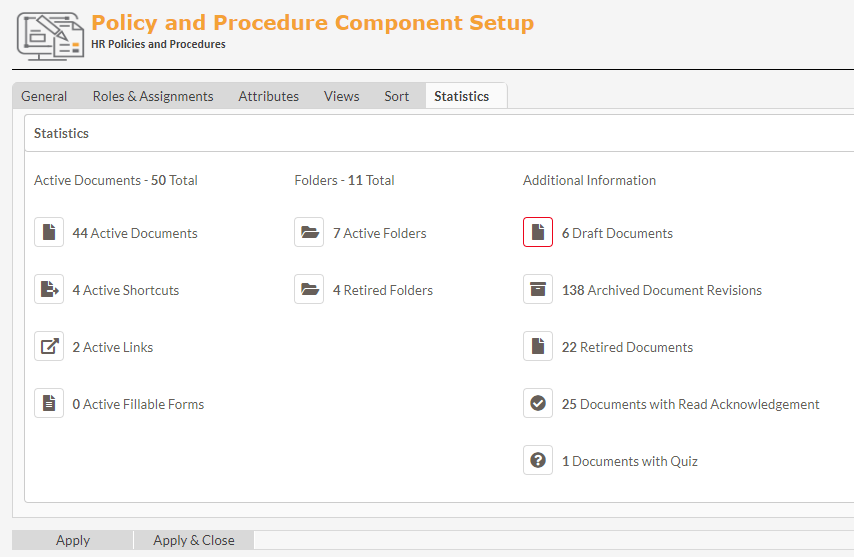
The statistics screen gives users an overview of the Policy & Procedure content. Statistics displayed include active document counts, folder counts, and additional information such as retired and archived documents.
Post your comment on this topic.