

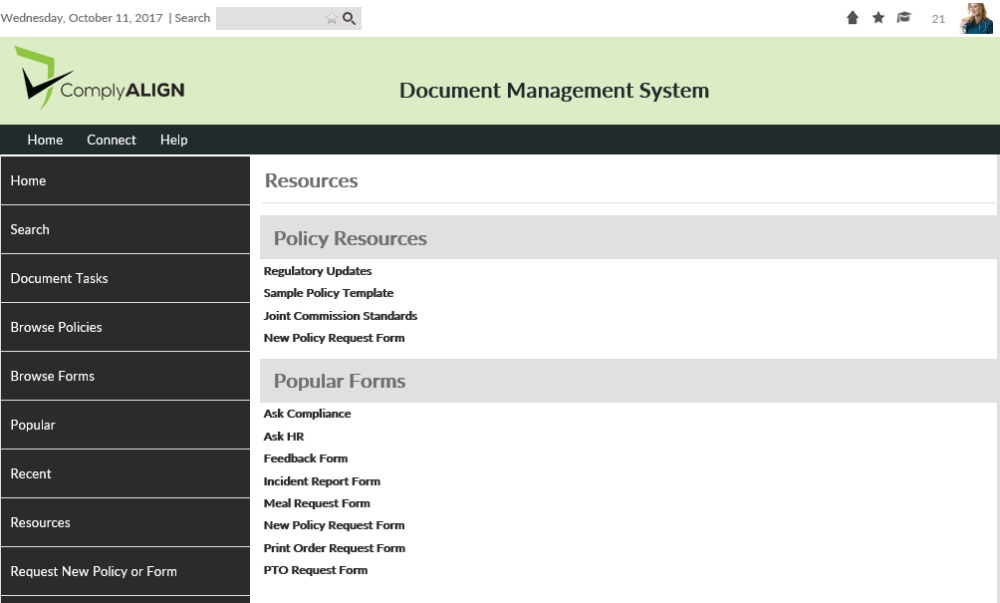
The Resources page allows your organization to display links to websites or documents that can help support your policies, forms, and other documents in your system. Links on this page are split up into three sections: Policy Resources, Popular Forms, Templates.
These resources can be created and edited by users that are in the [Editors] – Resources security role. The users assigned to the [Admin – Users & Roles] can assign people to this group by following the directions on this page: User Security Role Configuration Steps.
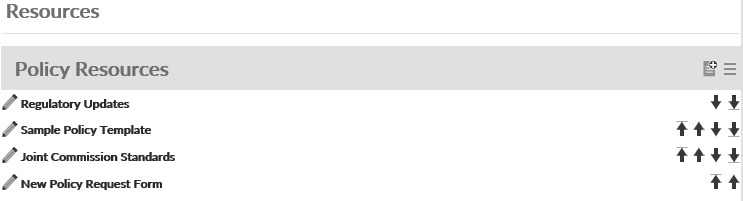
Once added to the group, editors create a new link by clicking on the New button ( ) for the section to which you want to add the link. Clicking this icon will bring you to the Add New Link page. On this page:
- Define a Title for this link. This is what will be displayed to the end user on the page.
- Define a Description if needed. This will display in a tooltip when hovering over the link on the page. You also have the option to Display description on the page next to the link.
- Choose where the link will be going
- URL – Use this option to link to an external website. Insert the full URL (ex. http://www.Policy Manager.com). You can also link to policies or other documents by clicking on their document menu (
![]() ) and click on Copy URL, then paste it into this field.
) and click on Copy URL, then paste it into this field. - Link to Page – This allows for linking to a page within Policy Manager. In the textbox that appears when selecting this radio button, start typing in the name of the page you want to link to.
- Upload & Link File – Click the upload button to upload a document from your computer.
- URL – Use this option to link to an external website. Insert the full URL (ex. http://www.Policy Manager.com). You can also link to policies or other documents by clicking on their document menu (
- Optionally, choose an Effective date if you want to display the link to end users after a certain date.
- Optionally, choose an Expiration date if you want the link to be removed for the end users
- Select a View Order for where you want the link to be displayed in relation to the other links in this section.
- Choose whether or not to Display the description with think on the page
- Choose to Open in a new window. Make sure this is selected for links to external websites. If this a link to another page within Policy Manager, then make sure that this is unchecked.
- Click Apply & Close to save your changes and return to the Resources page. You may also click Apply & New to save your changes and enter in another link.
 ) and click on Copy URL, then paste it into this field.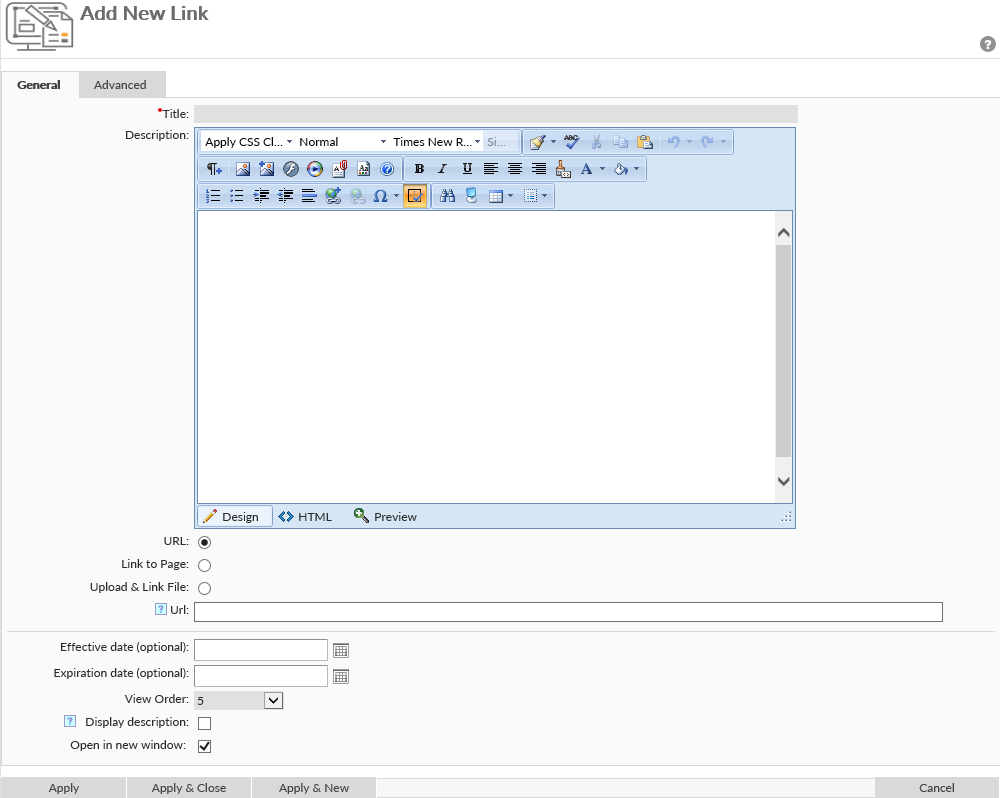
To edit existing links, click on the pencil ( ) next to the link you need to edit.
To sort links click on the sorting arrows ( ) to the right of each link.
Post your comment on this topic.