

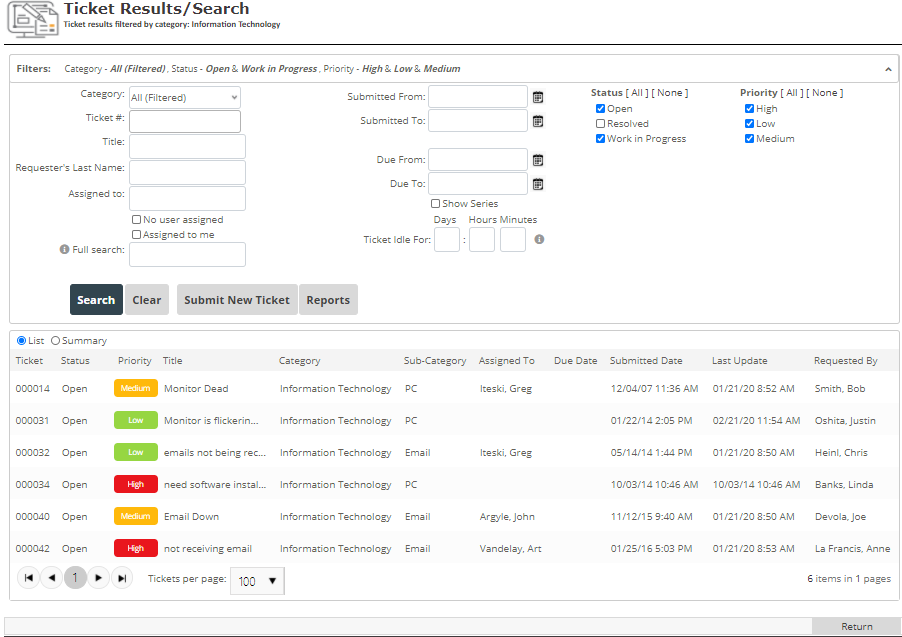
The following screen shows the list of all tickets viewed along with a range of search criteria. Tickets are color coded to the priority – green for Low, yellow for Medium, and red for High.
To apply criteria to the search, specify one or more criteria and click Search. To ignore all search criteria and display a list of tickets, click Show All. To clear search criteria, click Clear. To submit a new ticket, click Submit New Ticket. To leave the Ticket Tracking System, click Return. To view details of an individual ticket, click on the ticket’s number.
You can run reports by clicking on View Reports. On this screen you can use the same search criteria when searching for tickets. This report includes listing of ticket details by category. The report includes tickets the user can administer or resolve only. You can also filter your tickets by the status, priority, description, category, assigned to, due date, date submitted, last updated and requested by clicking on the title.
The Ticket Statistics report displays the statistical summary of submitted or resolved tickets. There are also reports where you can run for “My Submitted Tickets” or “Tickets by Assigned User”.
The Ticket Details screen displays the current state of the ticket. A submitter may re-upload or upload new files to help resolve this ticket. Others may only view those files. The “Additional Resolution Files” section allows users to save internet links and files to help resolve issue. To save a link or a file, fill in the appropriate fields and click Save Link or Save File respectively. To view a link or a file, select a ticket from the list and click View Link or View File. The “Change Status” and “Change Priority” sections allow users to change status and priority of this ticket. Only a resolution user may change status to “Work in Progress”, but a resolution user or the submitter may resolve and reopen a ticket. The “View Notes” section displays notes for the current ticket and provides a way to post new notes. Resolution users can view and post internal notes, but regular users only view and post regular notes.
To go to the previous screen without saving any changes, click Cancel. To save changes, click
Apply. To save changes and go back to the previous screen, click Apply & Exit.
Post your comment on this topic.