

Administrators can choose to add a watermark to a document when viewing a document using the document viewer or downloading a PDF version of the document.
To add watermarks to PDF documents:
- Administrators will Click the Administrator Icon to access the Administrator Menu
- Select P&P Management, then General Configuration
- Scroll to the bottom of the page to see the PDF Watermark Setting section
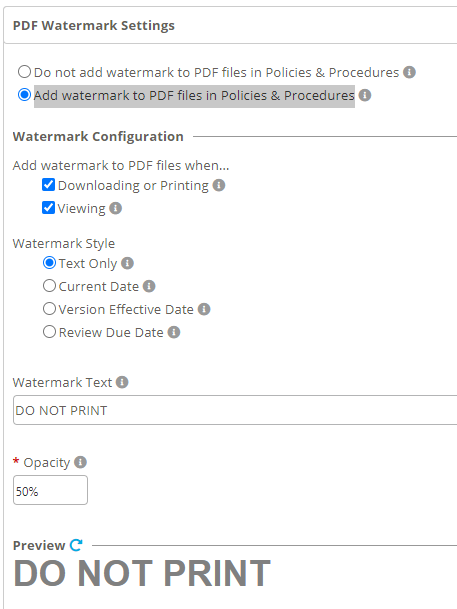
- Click the Add watermark to PDF files in Policies & Procedures radio button to expand settings options
- Users can select if the watermark should appear when downloading and printing the document, viewing the document in the portal, or both
- The watermark style enables users to add the current date, effective date, or review date in addition to specified text
- The text to be used as the watermark will be entered in the Watermark Text field
- Users can choose how bold or faint to make the watermark by adjusting the opacity
- When all settings have been made, click Save
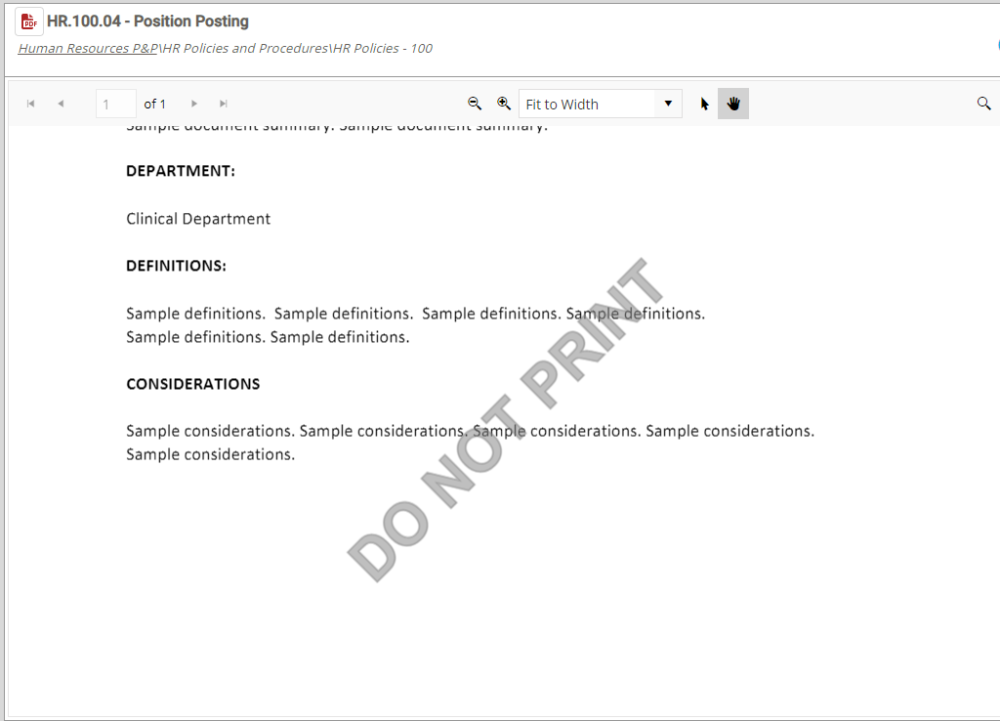
Users will now see the watermark when they view or print the document:
Last modified:
Jul 10, 2023
Post your comment on this topic.