

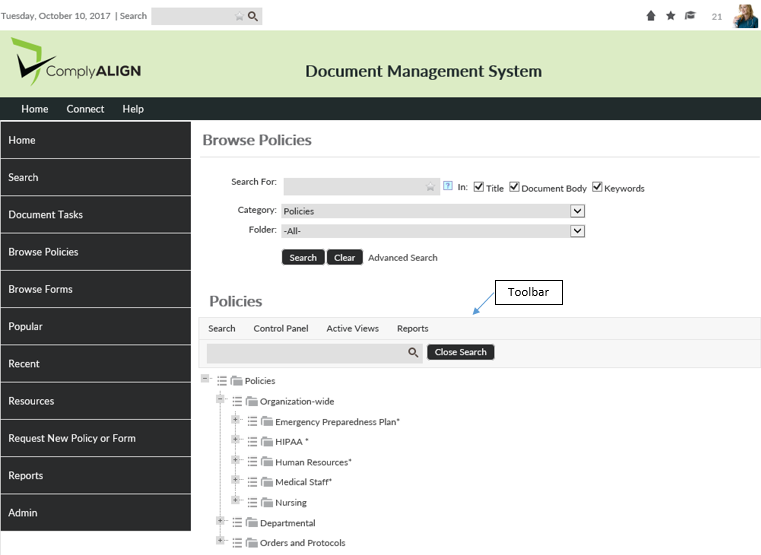
This pages contains all policies in the system. The first thing you’ll see on the page is the search tool. This search will only return policies and will exclude forms or other content in the system. It works in the same way as the search tool on the Search page.
The section of this page that contains the policy documents is labeled Policies. Right below the label is the toolbar for that section.
Toolbar
The Toolbar provides access to action buttons. The type of action buttons displayed in the toolbar depends on the user’s workflow role assignments.
The action buttons provide access to the following views and reports:
- Search – allows users to search the current component by title, document body, or keywords. Search results can also filtered by folder. This same search functionality through the standalone component, P&P Search.
- Control Panel – powerful snapshot view of documents that require current user’s attention (based on P&P component configuration)
- Accessible to authorized users only (i.e. authors, moderators, approvers, etc.)
- Active Views – Contains different views that display Active documents
- Explorer View – folder hierarchy view of the documents. The left pane displays the folder hierarchy. The right pane is used to display the content of the folder (as highlighted in the left pane).
- Folder View – folder hierarchy view of the documents (accessible to all users)
- Grid View – tabular organization of the documents (accessible to all users)
- Archived – Contains different views that display Archived documents (accessible to moderators only)
- Folder View – folder hierarchy view of the documents
- Grid View – tabular organization of the documents
- Reports – access to report function (accessible to moderators)
Viewing documents
The view access and display options are controlled based on the combination of the security settings as defined in the setup screen. The users who do not have view permissions to specific documents or folders will not be able to view the respective items in the policy repository, regardless of the selected view option. Furthermore, documents that are being authored are only visible and accessible to users who are granted rights to participate in the document creation, approval or publishing process.
The red outline around the document icon  indicates that the document is in the draft phase. Any new documents are visible only to those users who are assigned a role in the document creation, approval and publishing process. These documents will not be visible to users defined as Viewers.
Also, existing documents that are undergoing a revision may also be displayed with the red outline. The red outline will only be visible to users responsible for revising the document. The Viewers will not see the red outline on documents that are being revised.
Document Access
Viewing documents by end users is as simple as clicking the item’s title. Once the item is clicked, the file will be opened within its corresponding native viewer application (i.e. PDF file will open in Adobe Acrobat Reader, Word files will be opened in Word viewer or Microsoft Word application).
In addition, a document can be configured to be open along with a Cover Page. The Cover Page is an additional document that displays critical information about the document such as Title, Review Due Date, links to Related Documents and Keywords.
Document Menu
The document menu can be acccessed by clicking on the menu button ( ) to the left of each document. This menu will give you options for each document based on P&P role assignments in the Document Settings. Some options might be hidden for some users based on roles and permissions.
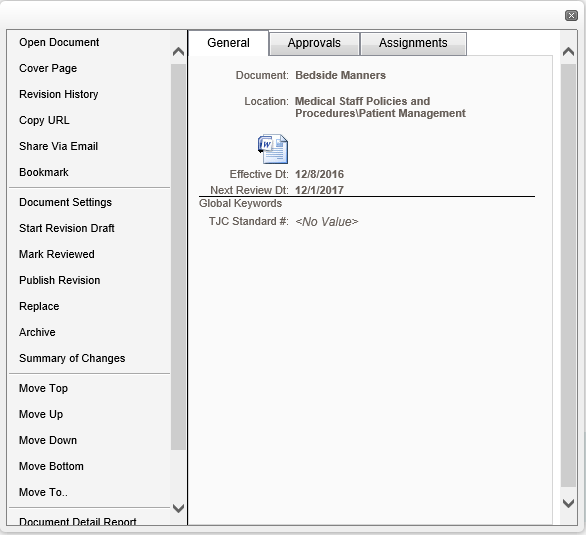
The Document menu also includes important details for each document. This information includes:
- Key dates (Effective date, Reviewed Date, Next Review Date, etc.)
- The location of the document within the tree
- Keywords attached to the document
- Related Documents
- Who approved the document and when
- The assigned users to each P&P Role for the document.
Post your comment on this topic.