

In addition to your organization’s templates discussed in the P&P Templates section of this manual, HealthStream now provides cloud hosted clients a library of policy content templates that can be used as the draft document. HealthStream subject matter experts in Human Resources, Compliance, Administration, HIPAA, Billing/Accounting, and HIM contributed to the content available in over 300 documents.
Accessing Templates
- During the Authoring stage of the revision workflow, users with author rights (Administrator, Moderator, Lead Author, Co-Author) can access the draft screen to select a template as the draft document
- On the draft screen, users will now click the Replace with Template button to access available templates
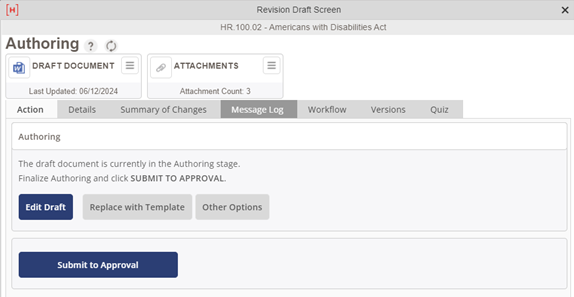
• The Replace Document from Library screen will display, with search and browse options for the HealthStream library, and thumbnails displayed for documents uploaded into the organization library
Selecting Templates – Organization Library
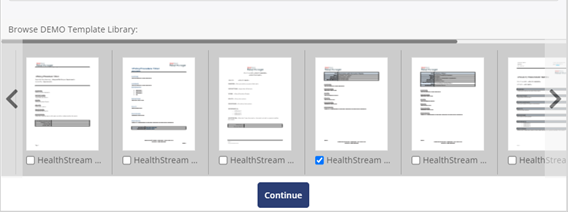
- The organization library consists of template documents uploaded to the Intranet by the system administrator for the organization, and is visible along the bottom of the screen
- Preview a template from the organization library in the system viewer by clicking the thumbnail
- To select a template from the organization library to use as the draft document, check the box on the thumbnail and click Continue
- The selected template will now be the draft document on the draft screen. Authors will then edit the template by clicking the Edit Draft button. Add content to the template as needed, either copied from existing documents or written by the authors at your organization
Selecting Templates – HealthStream Library (Cloud Hosted Only)
- The top portion of the screen contains search and browse functions for the HealthStream library
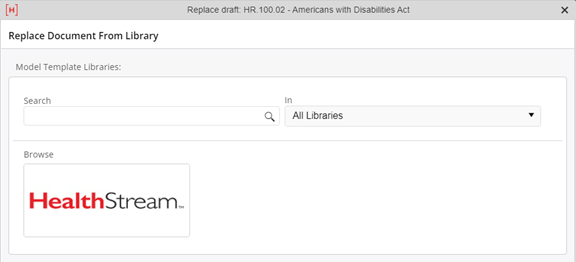
- The search function enables users to find a template in the HealthStream library. Search results will include any document that includes the search criteria in the title or content
- Enter the search terms and click the search icon
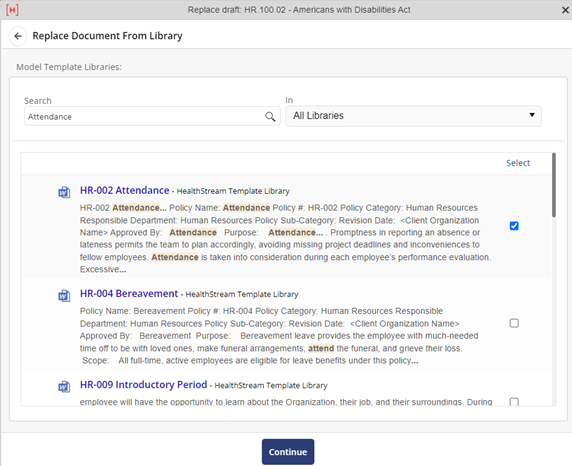
- The results are displayed with the title of the document and a passage with the search terms included to give context for the document
- Preview a template in the system viewer by clicking the name of the template
- Select a template from the HealthStream library to use as the draft document by checking the box to the right of the template description and click Continue
- The selected template will now be the draft document on the draft screen. Authors can edit the template by clicking the Edit Draft button
Browse HealthStream Library Templates
- If the content of the desired template is unknown, clicking the HealthStream logo in the Browse section will display all six subject category folders to browse
- Click the expand arrow to the left of the category folder to view the templates available for the category
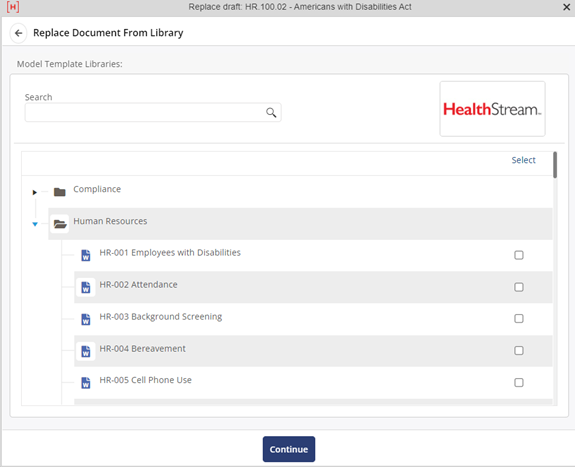
- Preview a template in the system viewer by clicking the name of the template
- Select a template from the HealthStream library to use as the draft document by checking the box to the right of the template name and click Continue
- The selected template will now be the draft document on the draft screen. Authors can edit the template by clicking the Edit Draft button
Last modified:
Jul 10, 2023
Post your comment on this topic.