

Lead Authors, Co-Authors, Moderators and Approvers of a document in progress can access the Draft Screen to author or collaborate on the document. The Draft Screen is only available for documents that are in the draft mode (red outline around the document icon). There are three different ways to open the draft screen:
- Document Menu Item – Navigate to the document in the Policies component and click on the Document Menu (
![]() ). Select Edit option, then click Current Draft.
). Select Edit option, then click Current Draft.
![]()
 ). Select Edit option, then click Current Draft.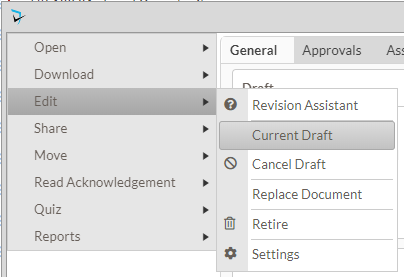
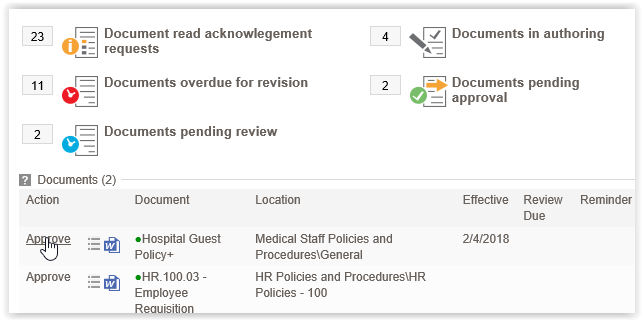
- Work Queue (Reminders) – Reminders can be accessed through this component or by clicking on the User Info Dropdown in the upper right corner of the page and select My Reminders. This component shows a list of actions that you are responsible for. Click on Show Details below one of the reminders. This will reveal the documents that need that specific action. Click on one of the links that appear to display that document’s Draft Screen.
![]()
- Control Panel – This is a component or an item in the toolbar of the Policies component that lists the different steps in the workflow that you are responsible for. Clicking on these will reveal what documents are in that step of the workflow that you are responsible for. Click on the link to the left of the document title that is labeled for the step in the workflow it is in.
![]()

The Draft Screen popup is the screen where all actions performed in the approval workflow will take place. The top of the draft screen tells you what step of the workflow the document is currently in. The first box that you’ll see is the Draft. Once a draft is uploaded the icon that you see in the screenshot below will change to the file type of the document you uploaded. Clicking on the menu for the draft will give you some options depending on what role of the workflow you are in.
- View
- Edit (if using inline editor)
- Replace
- Check Out for Edit (if setting is enabled)
You may also see a box for the Redline vision of the document if you have the Redline feature enabled.
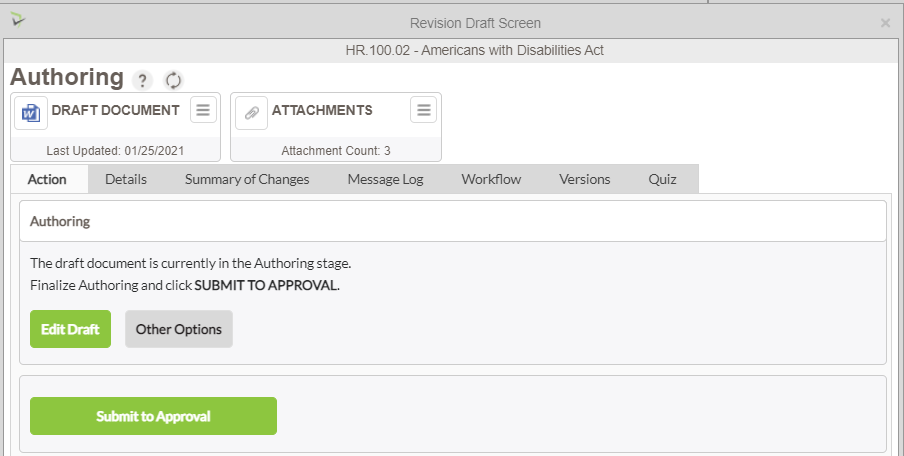
The main section of the Draft Screen contains several tabs:
- Action – Appropriate buttons will display depending on the step of the workflow. These buttons will be used to accomplish each step of the workflow.
- Details – Allows the Lead Author and Moderators to edit the Title, Description, and Keywords of the document (click the save button after changes are made).
- Summary of Changes – A place workflow members can add notes as to what has changed within the policy (click the save button after changes are made). The Summary of Changes is visible to all policy viewer upon publishing.
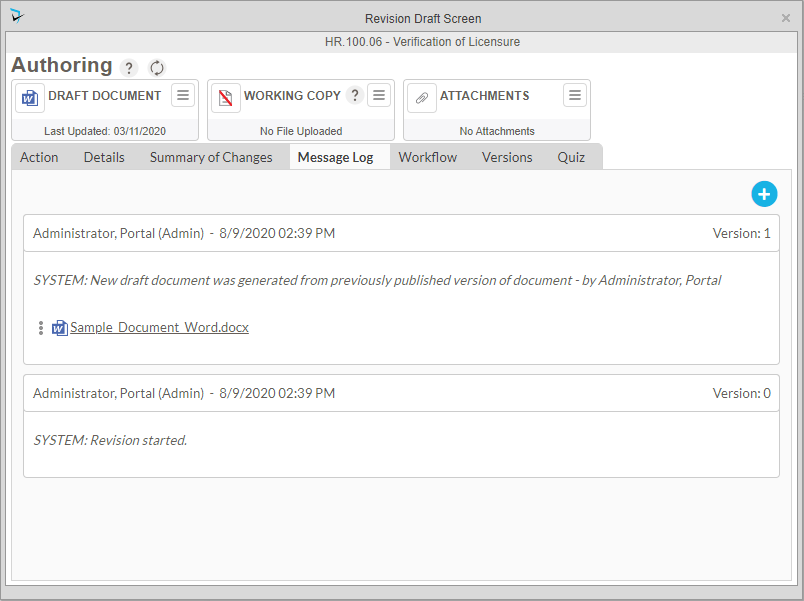
- Message Log – This tab stores system and user generated messages. The system will insert a message whenever an action takes place within a workflow. Users within the workflow can also add message by clicking on the Add Message or Attachment button. This will display a text box to write your message and also a button to upload an attachment. If an attachment is added, you may make it the draft after you post the message by clicking on the three dots in the message and selecting an option. These messages will be saved in the document history, and are only visible to workflow participants.
- Workflow – This tab will contain each step of the workflow and will display avatars for each person assigned to each role. when in the approval or expert review steps, it will indicate who has and who has not approved the policy. The icons for users who have completed their task will be displayed in green with a check mark.
- Moderators may also move the document to any step of the workflow by clicking on the Move to link for each step.
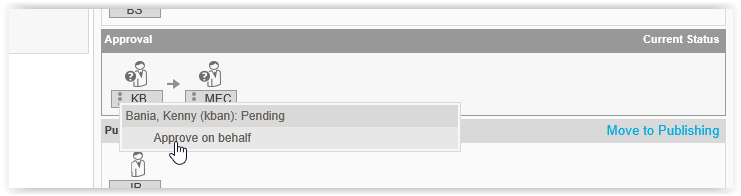
- If a document is stuck because an assigned approver has not or cannot approve the document then the moderator can skip only that approver. Each approver in the current approval step has a menu next to their initials. Clicking on this gives the moderator the option to approve on behalf of the user.
- Versions – This displays the document history. Click on Show Details for any Past Revision to see the draft history.
- Quiz – This tab only shows up if the person assigned to the approval workflow is also a Quiz Designer. This tab has all the same options as the Quiz Settings except for the ability to publish quiz designs. It does included the ability to modify and create new quiz designs.
Post your comment on this topic.