

The FAQ’s can be created and edited by users that are in the [Editors] – FAQ security role. The users assigned to the [Admin – Users & Roles] can assign people to this group by following the directions on this page: User Security Role Configuration Steps.
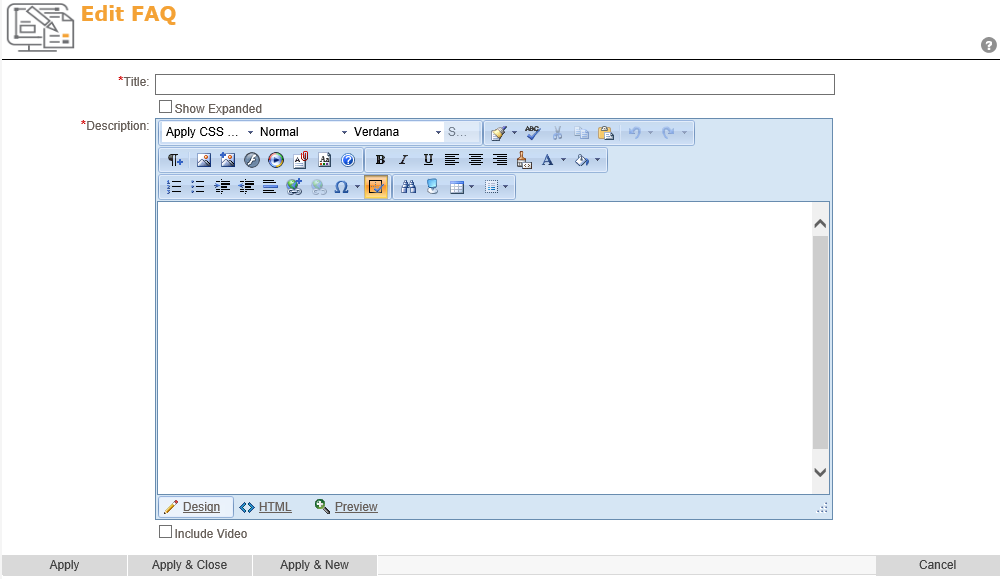
To add a new question to the FAQ page, click on the New icon ( ). This will bring you to the Edit FAQ page. In the Title text box, enter in the frequently asked question. Below the title, Show Expanded, will display the answer to the question without the end user having to click on the question. In the larger Description html editor, give the answer to that question. Use the toolbar in the HTML Editor to add pictures, links and formatting to better explain the answer to the question.
Below the description, you can click on the checkbox, Include Video, to add a video to your FAQ. The Media Player component is designed to play .MP4, .OGV, .WEBM files / extensions by default. If you choose to upload/configure any other file formats within the Media Player component the file you upload will be converted to .MP4 format upon saving this screen. The conversion utility supports almost all known video and audio formats based on the capabilities FFMpeg tool used to do the conversion. To learn more about the FFMpeg tool search for FFMpeg on the internet.
- Click on Upload Video to find the video to display
- Player Width
- Player Height
Click on Apply & Close to save your work and return to your page, or click on Apply & New to save your changes and add another question.
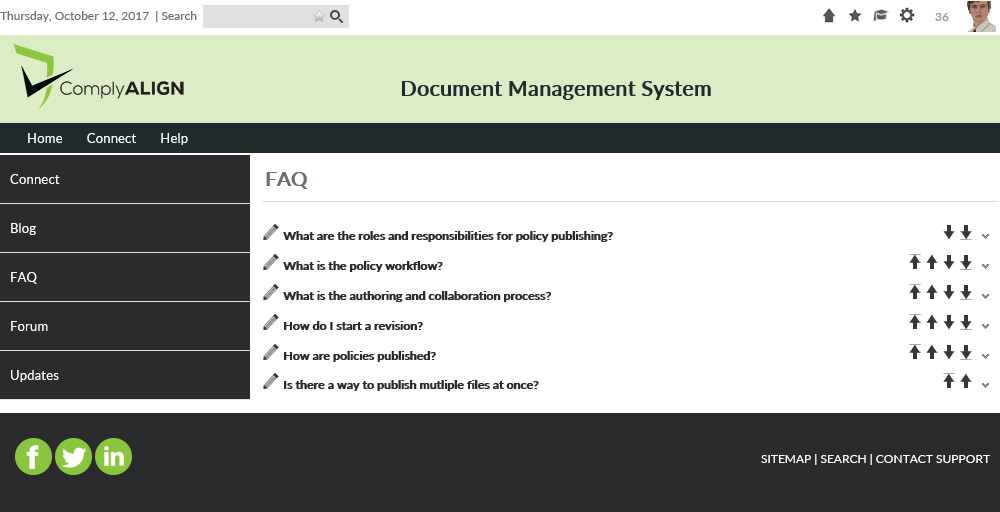
To edit existing questions, click on the Pencil ( ) next to the question you want to edit. You can also rearrange the questions by clicking on one of the arrows (
 ) to the right of the question.
Post your comment on this topic.