

Users who edit documents have the option to add information to documents via the Inline Editing add-in
Dynamic fields allow users to add data from the Policy Manager database to the document in Word. Utilizing these fields will assist organizations by removing additional editing as part of the workflow process, as well as ensure the most current workflow information is available on the document.
- These fields can be integrated within the document itself, or it can be added to a table within the document. This will allow information such as approvers, editors, key document dates, and/or the document title be easily inserted and updated when there is a change. Using the document add-in, these fields can be added to the document, and it will pull and match the information in the portal.
- In addition to having these fields embedded in the document, certain actions such as publishing a document or editing the settings of the document will validate and check that the embedded fields are current, or alert that they need to be updated.
- The labels that identify the fields such as the effective date can be customized to match the organizations language or naming conventions.
Dynamic Field Options
To access dynamic fields, users will edit the document in Word from the draft screen. On the Policy Manager tab in word, users will see the options available for dynamic fields.

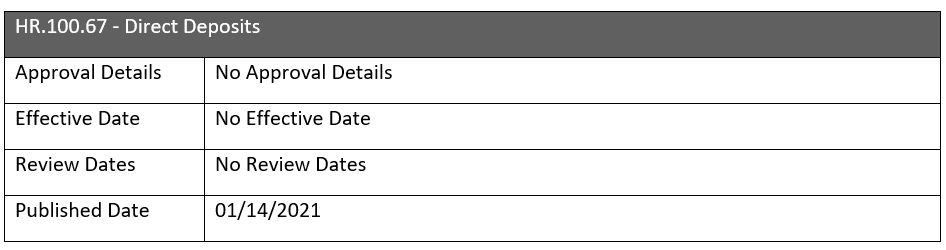
- Add Table: Inserts a predefined table in the document with information reflecting system settings for the document title, approver, effective date, review date, and published date.
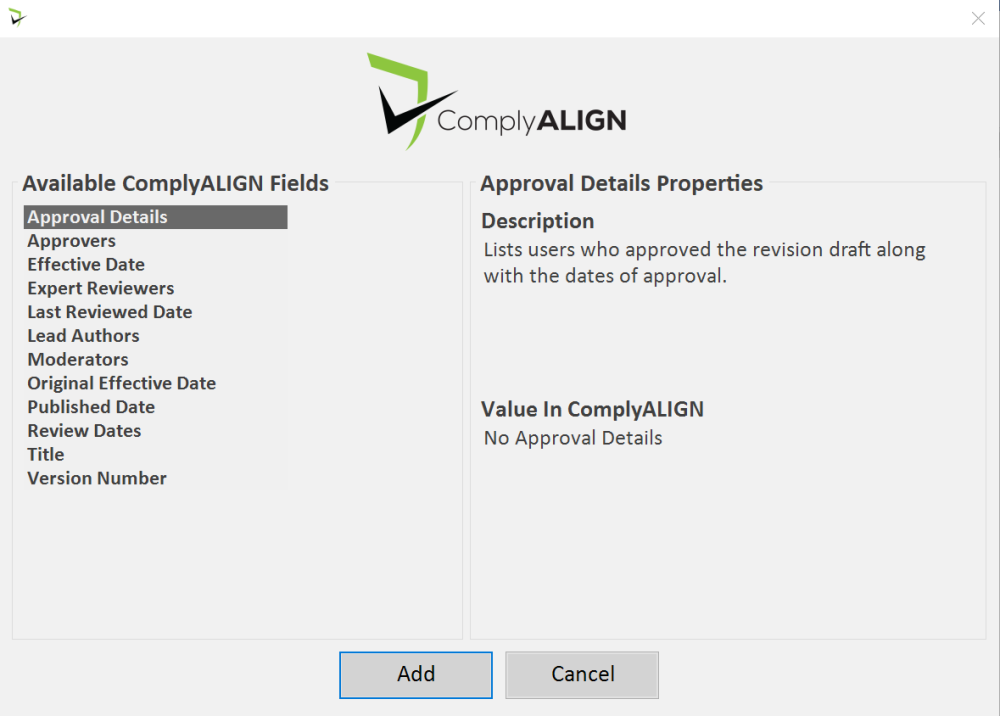
- Add New: Enables users to select which field to insert in the document.
- Remove Selected: Enables users to remove dynamic fields from the document
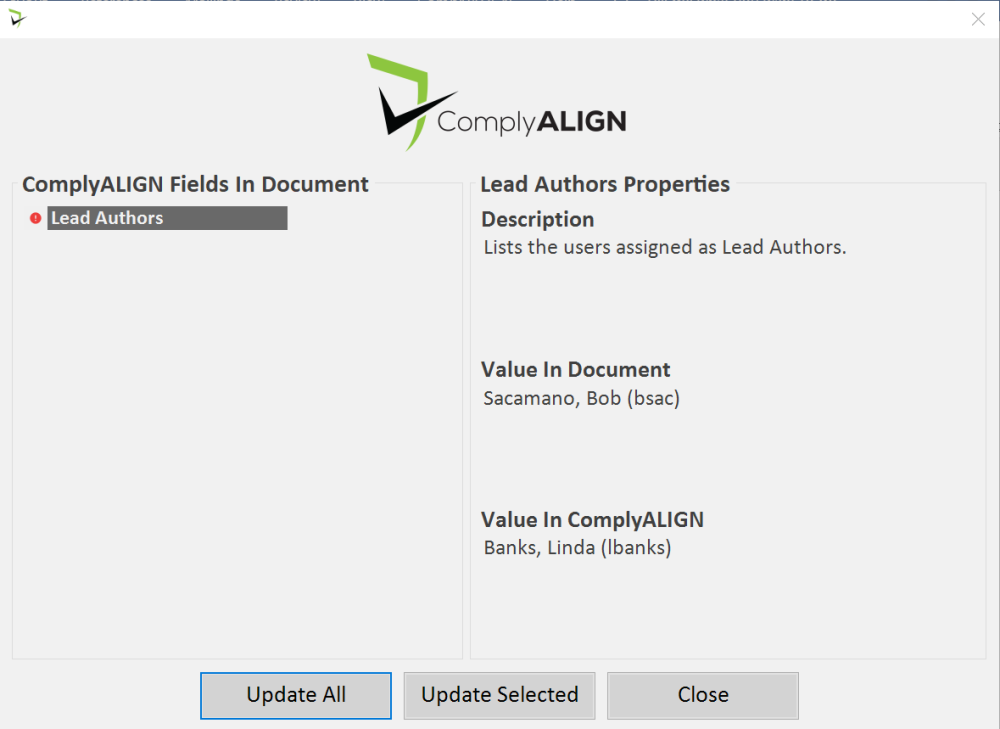
- Review: Compares information on the database and the document. If there are any discrepancies, the system will notify the user and ask if they would like to update the fields on the document.
Add Table
- Position the cursor to the location in the document where the table should be added.
- Click Add Table under the Policy Manager tab.
- The table below will be inserted in the cursor location
Add New Dynamic Field
- Position the cursor where the new field should be inserted in the document.
- Click Add New under the Policy Manager tab.
- Select the type of information to be automatically added to the document from the system.
- Click Add to complete the new field insertion. The field information from the system will now appear on the document.
Remove Selected
- Highlight the dynamic field on the document.
- Click Remove Selected under the Policy Manager tab.
- The information selected will no longer be linked to the system and can be edited manually.
Review
- Click Review under the Policy Manager tab.
- Items with a green check are fields that have been verified to match the system.
- Items with a red exclamation point are fields that do not match the information on the system.
- The review screen will indicate the information on the document and the information on the system.
- Users can update all fields, or only selected fields, or close the screen without updating any fields.
Last modified:
Jul 10, 2023
Post your comment on this topic.