

Once a user is signed in, they can add pages, documents, and links to other websites. There are a few ways this can be done
Bookmarking an external websites
A user can add website to the Bookmarks page in the User Info Dropdown by the New icon ( ). Two text boxes will appear in the component:
- Bookmark Name – What the user wants the link to display as in the Bookmarks component.
- URL – The web address for the website you want to link to.
Click on the disk icon ( ) to save your changes to the right of the text boxes.
Bookmarking a page
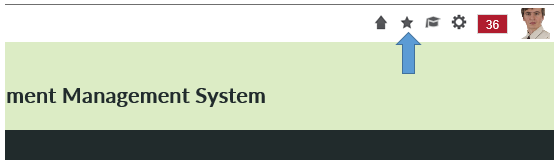
In the Top Bar, above the banner, there is a star icon (see screenshot). Clicking this icon will bookmark what ever page they are on. This applies to edit pages and regular pages.
Bookmarking Documents
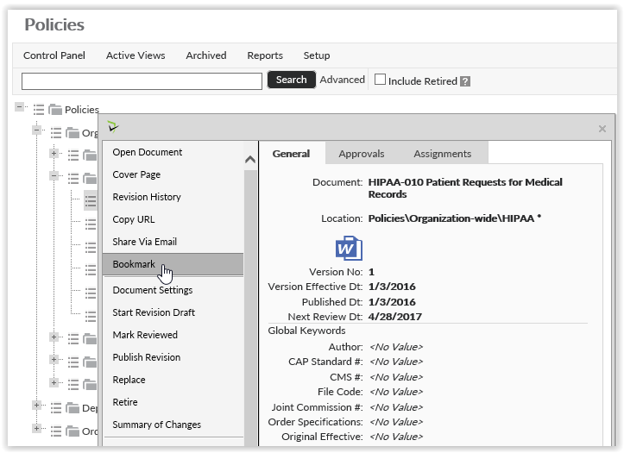
Users can book mark documents that reside in Browse Policies and Browse Forms page. This can be done by clicking on the Document Menu ( ) for the document you want to bookmark. In the menu, select the Bookmark option.
Bookmarking From Search Results
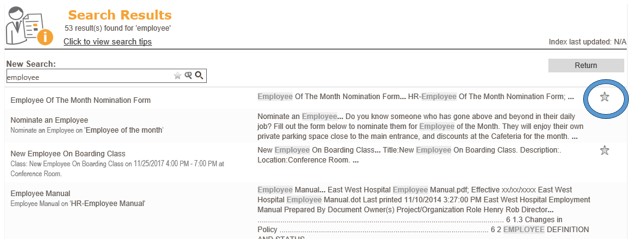
When search any search component on the intranet, each search result can be added as a bookmark. Users can click on the star icon that appears to the right of every search result. Clicking the star will add that item to the user’s bookmarks.
Post your comment on this topic.