

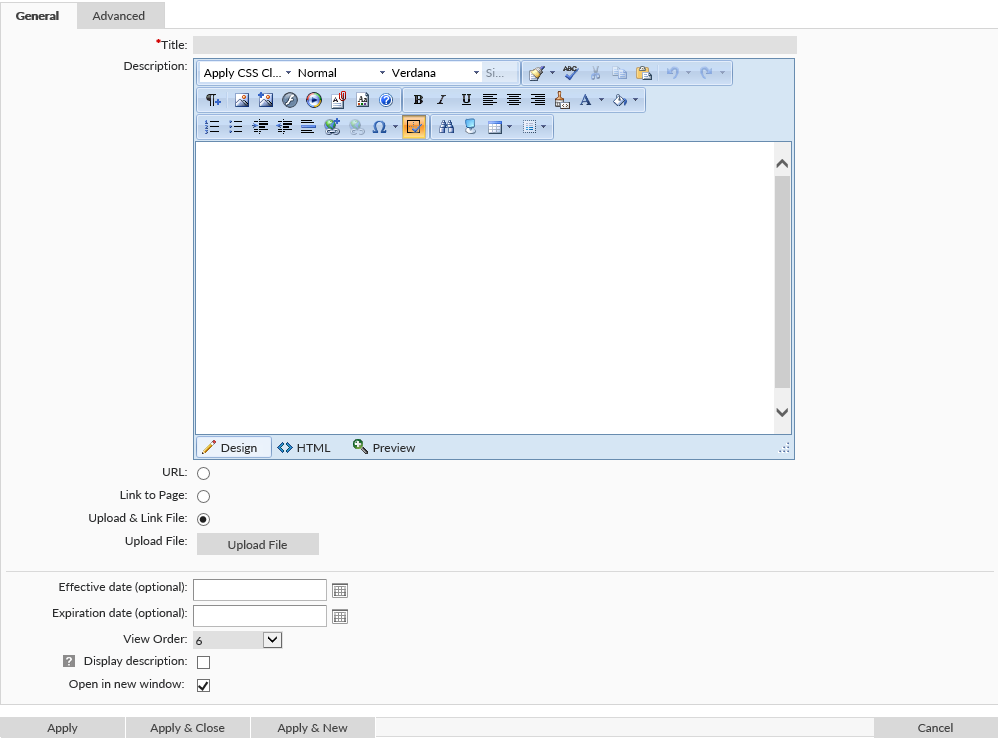
To add a new link, click the New icon ( ). This will open the Link Details screen. On this screen fill out the following:
* Title – Define the text that users will click on to open the link
). This will open the Link Details screen. On this screen fill out the following:
* Title – Define the text that users will click on to open the link
- Description – Define the text that will display when hovering over the link. You will also have an option to display this field next to the link itself.
- Choose which kind of link this will be
- URL – define the URL of a outside website. This needs to be the full URL (ex. http://www.hospitalportal.net)
- Link to Page – Link to another page within the system. In the textbox that appears when selected, start typing the name of the page and select it when it appears under the textbox.
- Upload & Link File – Click on the Upload File button to choose a file when the link is clicked.
- Effective Date – This date can be chosen to display the link to end users after this date.
- Expiration Date – This date can be used to hide the link for end users after the given date.
- View Order – Choose where this link will show in the list of other links
- Display Description – This will display the description next to the link name.
- Open in new window – This will open links in a new window. Select this if linking to a external website or file. Uncheck this if linking to another page within the system.
Once links are added you can further edit these links:
- To reorder links click, the applicable Arrow button
![]() next to the link
next to the link - To edit a link, click the corresponding ‘pencil’ button
![]()
- To delete a link, click the ‘pencil’ button
![]() to edit it and then Delete it from the Link Details screen
to edit it and then Delete it from the Link Details screen
 next to the link
Last modified:
Jul 10, 2023
Post your comment on this topic.