

Lead Authors will be notified via emails and system task reminders when a document has entered the Authoring stage. To author a policy, Lead Authors will need to open the Draft Screen. There are three different ways to open the draft screen:
- Document Menu Item – Navigate to the document in the Policies component and click on the Document Menu (
![]() ). Select Edit, then click Current Draft.
). Select Edit, then click Current Draft. - Work Queue (Reminders) – Reminders can be accessed through this component or by clicking on the User Info drop down in the upper right corner of the page and select My Reminders. This component shows a list of actions that you are responsible for. Click on Show Details below one of the reminders. This will reveal the documents that need that specific action. Click on one of the links that appear to display that document’s Draft Screen.
- Control Panel – This is a component or an item in the toolbar of the Policies component that lists the different steps in the workflow that you are responsible for. Clicking on these will reveal what documents are in that step of the workflow that you are responsible for. Click on the link to the left of the document title that is labeled for the step in the workflow it is in.
 ). Select Edit, then click Current Draft.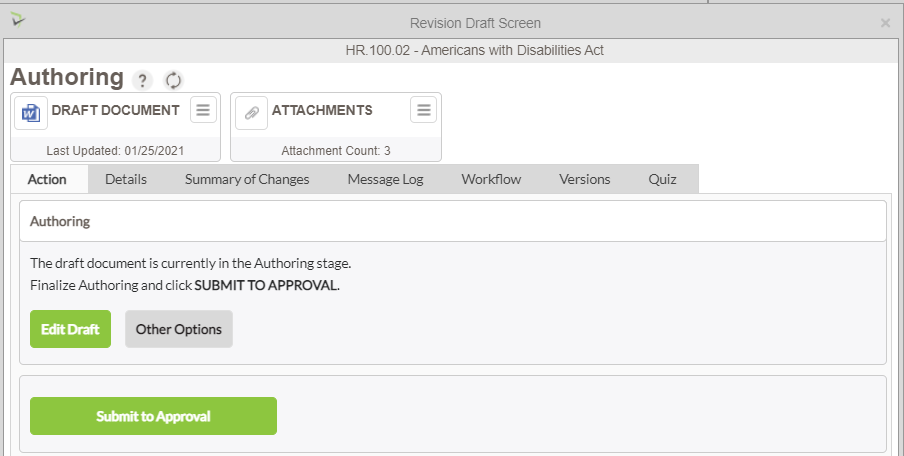
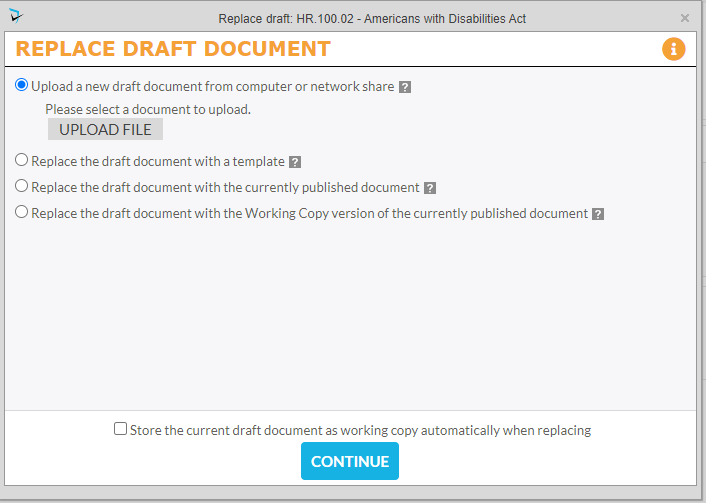
On the Action tab, the Lead Authors have a couple of options to author a policy. The Author may edit the existing version of the document by selecting Edit Draft. If the Lead Author would like to select a different document as the draft, they will click Other Options. Here, the Lead Author may:
- Upload a new draft document from computer or network share.
- Replace the draft document with a template.
- Replace the draft document with the currently published document
If Inline Editing is enabled and the currently published document is a Word document, the document will be opened in Word, and Authors can save edits directly back to the system. If you have Inline Editing enabled but published a PDF, Authors will see the Upload New File option instead of the Edit File option on the draft screen.
Once a document is selected to be a draft, You will see that the Draft icon on the top left side of the screen has changed to the file type that was uploaded.
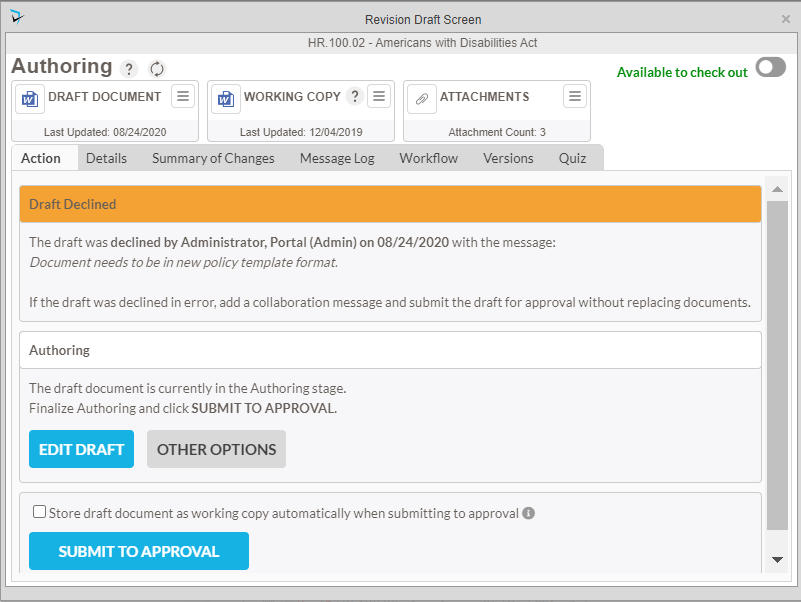
Check Out/Check In Feature
There are times where there might be more than one lead author tasked with updating a policy. They may be responsible for different parts of the policy or either one of the authors has the ability to update the policy. There becomes this issue where one author can overwrite the other’s edits if they are editing the document at the same time. To address this issue, the Check Out feature enables an author to check out a document so that no other authors can edit at the same time. When they are done editing, they can check it back in so that the other authors can work on it.
To enable this feature you have to be a Moderator or administrator and go to the Setup screen of the Policies component you are working on.
On the General tab, select the option, Enable Check Out.
You will see other options appear once checked:
- Prompt to Check Out Document on Edit – Those allowed to edit will be prompted asking if they wish to check out the document for editing.
- Enable check Out for Expert Reviewers – expert reviewers will be provide the ability to check out the document if they have edit rights on the draft.
- Enable Check Out for Approvers – Approvers will be provided the ability to check out the document if they have edit rights on the draft.
The checking out and in of policies are all done within the draft screen of a policy going through the revision approval workflow.
You can check out the draft from the Draft Menu next to the draft icon at the top of the draft screen. Select the option, Check Out for Editing.
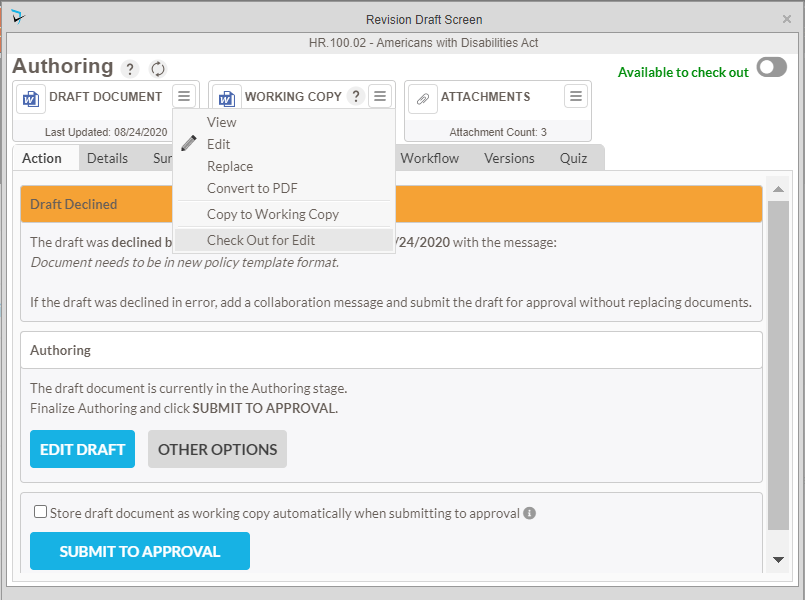
Once checked out this option in the menu will change to Check In which can be selected when finished editing to allow other authors to edit the policy.
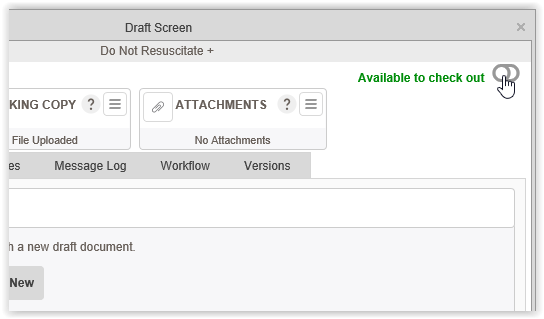
The other option is to use the toggle in the upper right corner of the Draft Screen. You can also use this toggle to check the draft back in.
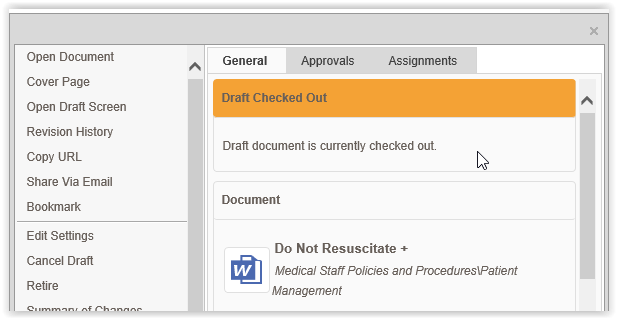
When a policy is checked out, the Info Card will display an alert indicating that the draft is currently checked so other workflow participants know before opening the draft screen.
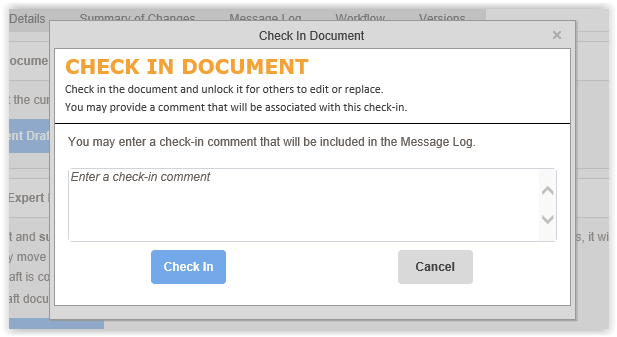
To check in a policy you can either go to the Draft menu or click on the toggle to check the policy back in. Once you choose the option to check the policy back in, a popup will be displayed that will give you the option to leave a message in the message log tab of the Draft Screen.
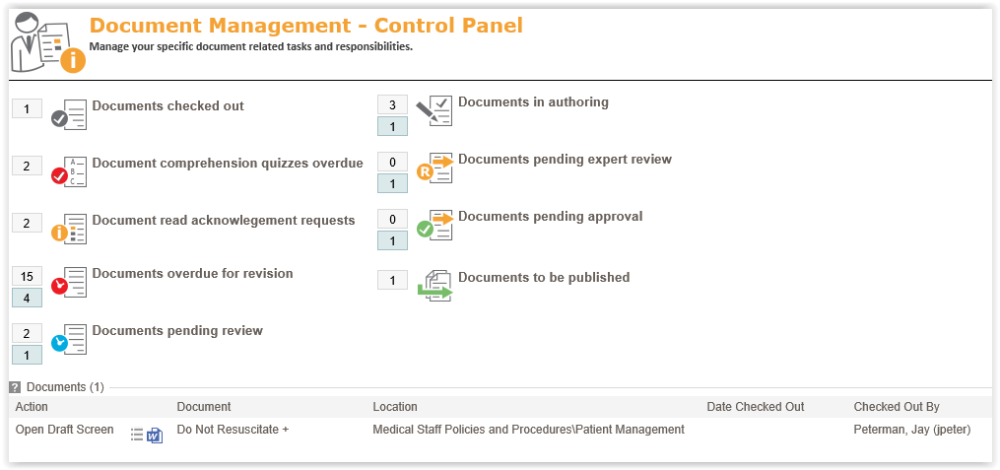
When a policy is checked out, they will show in the Control Panel under their own category called, Documents checked out.
Post your comment on this topic.