

One or more documents can be uploaded into a selected folder at once. These documents can be uploaded as active (published) documents or as drafts in the Authoring stage so they can be sent through the approval workflow. Only Moderators and Lead Authors have the ability to use this feature (lead authors only have the ability to upload as draft).
- To upload multiple files, users will open the menu for the destination folder. On the folder menu, select New, then Upload.
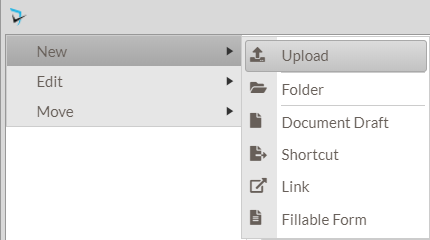
- In the popup window, users will click the Select Files button and browse their computer for the documents to be uploaded. To upload multiple files, the user can hold down shift or Ctrl to select.
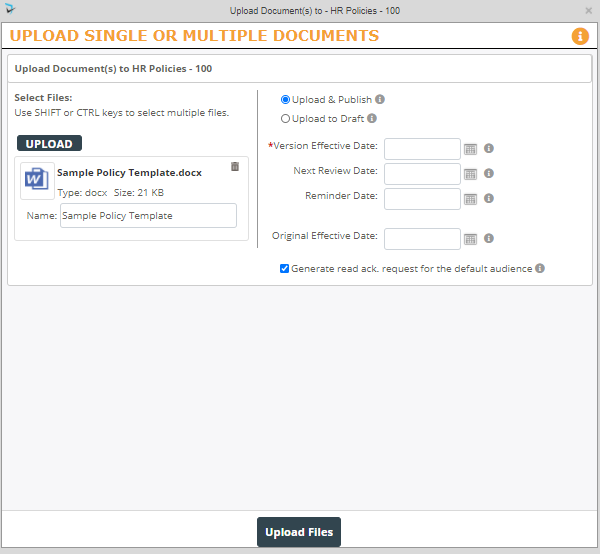
- The user will then select the radio button to either Upload and Publish (For documents that do not need to be processed through the workflow) or Upload to Draft (for documents that need to go through the full revision workflow).
Upload and Publish
If the document is ready to be published, and the user has selected Upload and Publish, the following fields will display:
- Version Effective Date – The date this document version went into effect. This field is required.
- Next Review Date – The due date for the next review/revision for this document.
- Reminder Date – The date the portal will automatically send email and task notifications to the Moderator(s) of this document
- Original Effective Date – The date this policy first went into effect with version 1.
- Generate read ack. request for the default audience – If checked, the system will generate read acknowledgement requests for any Policy Reader assigned users when document is published.
Upload to Draft
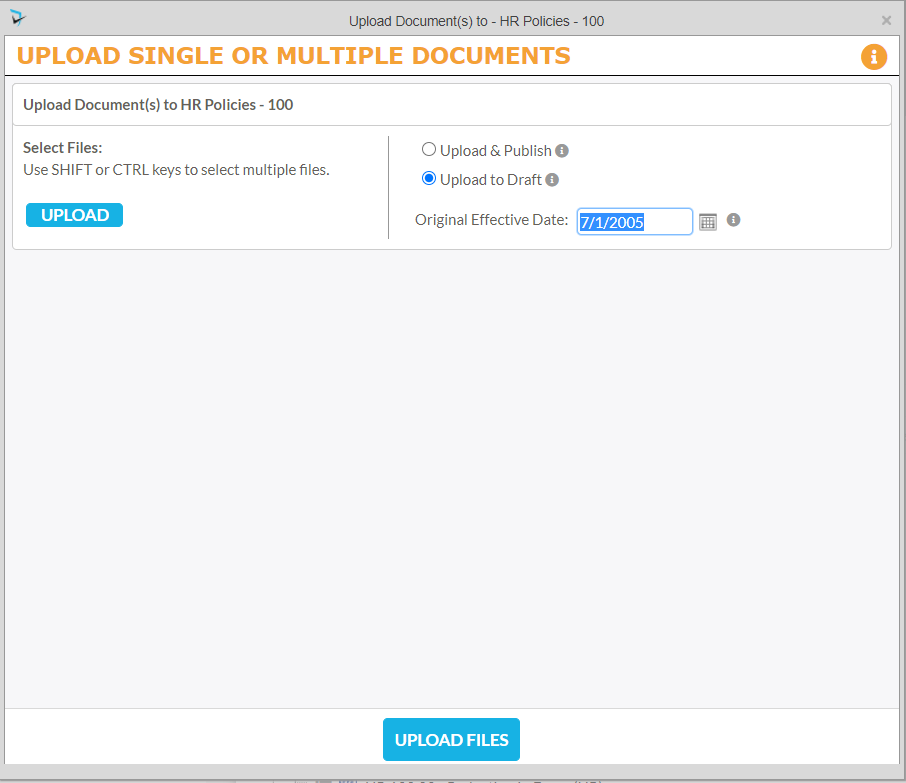
If the document is not ready to be published and will be processed through the revision workflow, the user selects Upload to Draft. The following fields will display:
- Original Effective Date – The date this policy first went into effect with version 1.
When complete, the user will click the Upload Files button
Last modified:
Jul 10, 2023
Post your comment on this topic.