


Role Management without Active Directory Integration
- Users must be logged in as administrators to manage roles.
- Users access the Administrator menu by clicking the Administration icon (
![]() ) on the top banner in the upper right corner.
) on the top banner in the upper right corner. - On the Admin Menu (left side of the admin screen) users will select Security then Roles. The Manage Roles screen is displayed.
- To add a new role, users will click the Add New Role link at the top of the screen.
- The Title field must be completed with the name of the role.
- In the first user selector, users will choose the members of the new security role, if known.
- In the second user selector, administrators can select users to grant Role Administrator access if they do not have System Administrator rights, enabling the user to manage this role only.
 ) on the top banner in the upper right corner.
Role Management with Active Directory Integration
- The security group must first be created in Active Directory and populated with appropriate users for the security role on the system.
- Users must be logged in as administrators to manage roles.
- Users access the Administrator menu by clicking the Administration icon (
![]() ) on the top banner in the upper right corner.
) on the top banner in the upper right corner. - On the Admin Menu (left side of the admin screen) users will select Security then Roles. The Manage Roles screen is displayed.
- Users will click the Add New Role link at the top of the page to add a new role.
- On the New Role page, the name for the Role must match the name of the group in Active Directory.
- Once named, users will click Apply at the bottom of the page. This will refresh the page, allowing further configuration.
- A section labeled Active Directory Group Links is displayed. In this section, users will add the link to the Active Directory Security Group that created in the first step by clicking the Add New AD Group link.
- The user will enter the exact name of the group in Active Directory in the Group Name field and add a description if needed.
- The user then selects the domain that the AD group is in from the Domain drop down.
- Once completed, the user must click the Save icon (
![]() ) to the left.
) to the left. - Users in the group will automatically be added when the member logs into the system.
- Optionally, users who do not have System Administrator rights can be given rights to add and remove people for the role by selecting them from the Role Administrators user selector.
 ) to the left.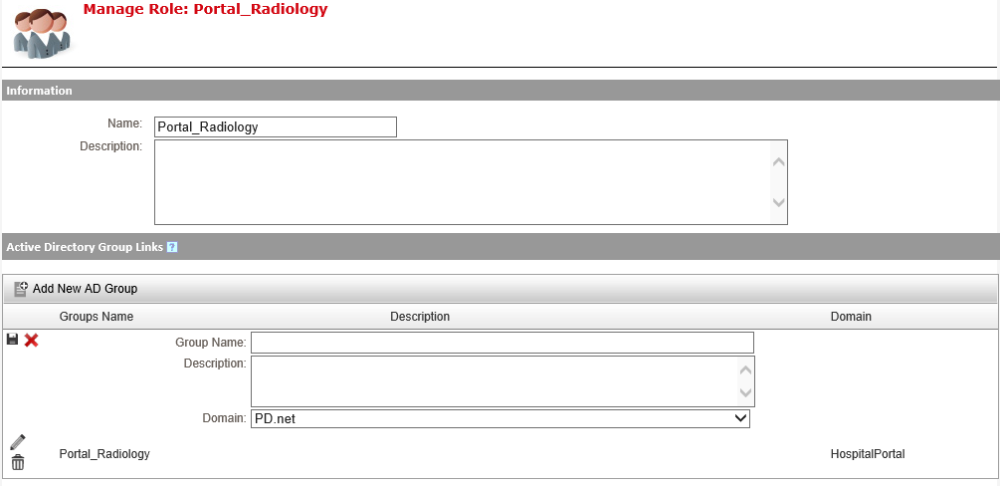
Last modified:
Jul 10, 2023
Post your comment on this topic.