

Quiz audience members will get notified in two different ways:
- Email reminders
- Audience members will get individual email’s for each quiz they have to take.
- Audience members will also receive the P&P Summary emails which has a section for Comprehension quizzes.
- Work Queue (Reminders) Component
- You will have reminders for Pending Quizzes as well as a separate reminder for over due quizzes.
By either clicking on the link within an email or the Show Details link under the reminder in the Reminders component, you will be brought to Document Comprehension Quizzes or Document Comprehension Quizzes Overdue view of the P&P Control Panel.
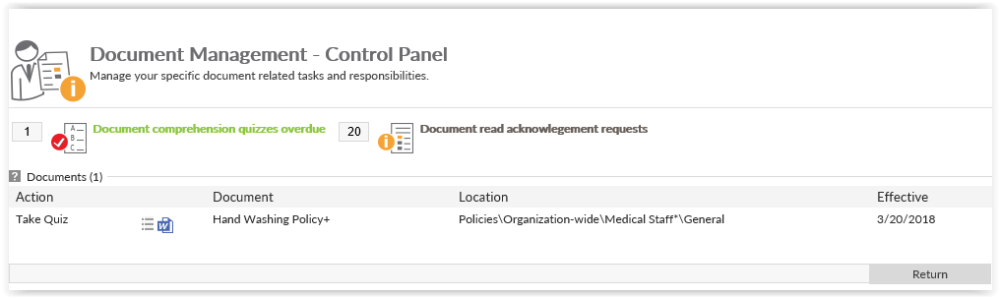
Click on the Take Quiz link next to the document for which you want to take the quiz. This will bring up the Take Comprehension Quiz popup. You may download a copy of the policy or document that you will be quizzed on by click on the icon under Document to Comprehend. Then you may click on the Start button. You will be warned that “The system will log the quiz attempt when you start the quiz. You will need to finish the quiz in a single session once the quiz is started.” Click on OK to start taking the quiz.
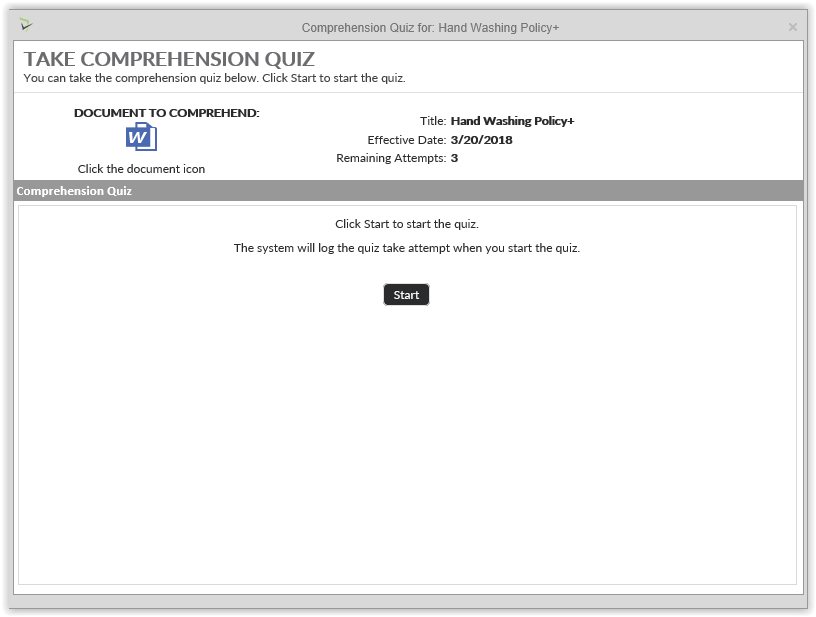
After clicking OK to the warning message, the popup will refresh with the quiz section which is split up in to different panes.
- The left pane displays how many questions you have to answer. As you answer questions, it will keep track of your progress. The top section shows you how many questions you have answered and the percentage of completion. Below that you will see a block for each question. Grey check marks within the boxes indicate questions you have not yet answered. They will turn green once answered. You can click on any of the boxes to jump from question to question. You may also use the Previous and Next buttons to navigate to each question.
- The right pane displays the question and answers. Click on either the radio button (if there is only one possible answer) or the checkboxes (if there are more than one answer).
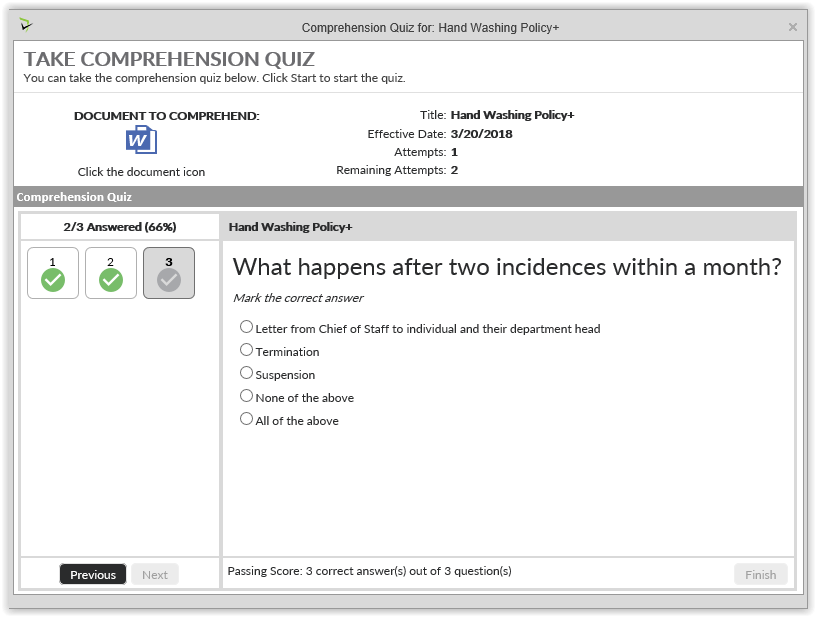
Click on the Finish button at the bottom, left corner of the popup to finish your quiz after answering all of the questions.
After finishing a quiz, your Electronic Employee File will be updated with the results
Post your comment on this topic.