

Once a document has been revised, or if a document has been archived, an archive record of the document is automatically created and stored in the system.
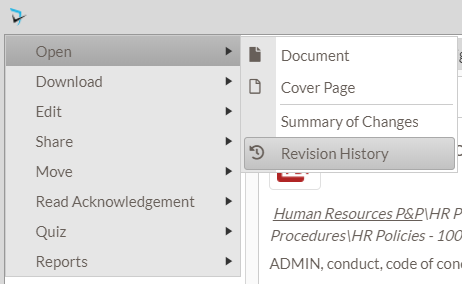
Authorized users can access the revision history of an existing document by selecting Open, then Revision History option from the document menu ( ).
).
Additionally, the revisions can be accessed from the Archived view under Folder View or Grid View from the main menu.
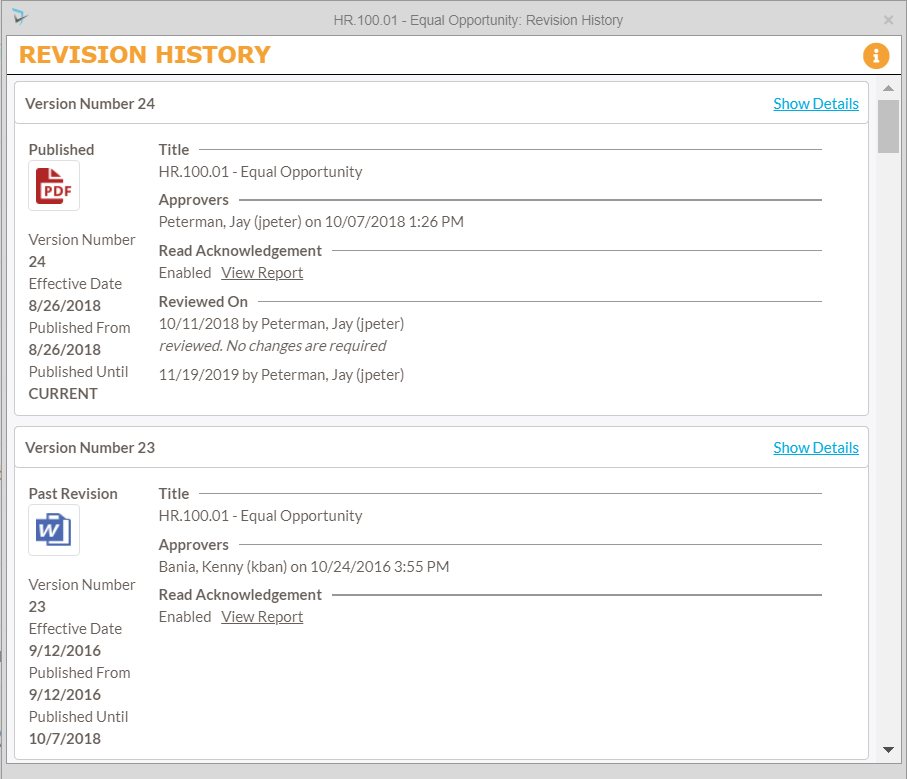
The Revision History screen is displayed. The most recent version of the document will be listed at the top of the screen. To view prior versions, users may scroll down. Each version entry will contain the following information:
- Version Number
- Show Details – Displays all attached documents as well as the message log from the workflow process.
- Document Icon – Clicking this link will open this version of the document.
- Version Dates – Display effective, reminder, and review dates for the document.
- Other Details – Displays the document title, Approvers, read acknowledgement status, and applicable review notes.
Restoring can be done by going to the Archive Folder View and going to the Folder Menu for the document you want to restore. Then select the option to restore.
Post your comment on this topic.