

The banner is the top section of the site. This section is always going to be displayed no matter where you are in Policy Manager.
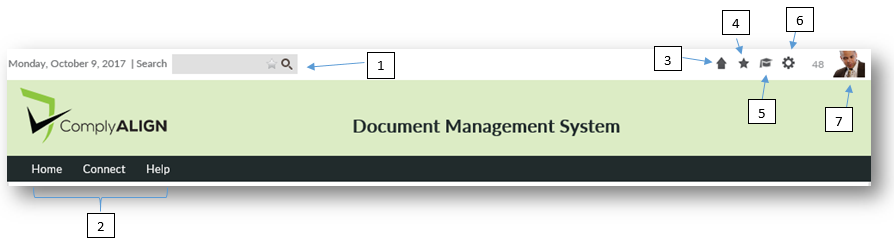
- Search – This is a search box that can be used to search Policies, Forms, and other content in Policy Manager. This search is global to the entire site. You will only receive search results that you have permissions to
- Banner Menu – This provides the main navigation to the site. Most of what you do will be under “Home”.
- Home – This icon will bring you back to the Policy Manager homepage from anywhere in the site.
- Bookmark This Page – Clicking this icon will allow you to list the current page as a bookmark so that you can access it quickly in the future.
- Academy Link – This will bring you to our Policy Manager Academy website where you can find help and further information about Policy Manager.
- Administration Menu – This icon is only visible to users who have Application Admin or Users and Roles Admin rights. This will also be available to users that have permissions to manage Policy Committees. Clicking this will take you to the appropriate pages to manage the sections of which they are responsible.
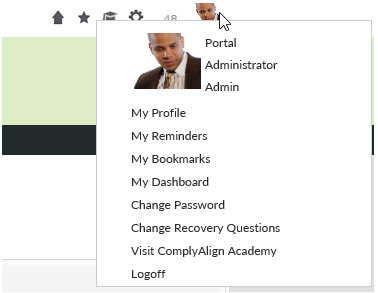
- User Info Dropdown – Gives quick access to:
![]()
User’s Picture or Icon will display in the top banner bar after logging in. It contains user specific information and links- My Profile (if User Profile is enabled)
- My Reminders
- My Bookmarks
- Dashboard
- Link to Policy Manager Academy
- Change Password (forms authentication only)
- Logoff
Last modified:
Jul 10, 2023
Post your comment on this topic.