

The Policy & Procedure component allows for users to approve documents on behalf of a committee.
Setup
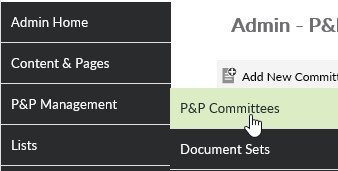 Portal Administrators and Application Administrators are the only people that can create new committees in our system. Set up a new committee by logging in as a Portal/Application Administrator and click on Administration Gear at the top of the page to access the Administration Menu. Hover over P&P Management and click on P&P Committees.
- Click on the
![]() button to open the New Committee screen.
button to open the New Committee screen. - Type in the name of the committee and a description if necessary.
- Select the users to be added to the committee but highlighting their name in the Available box and using the arrows (
![]() ) to move them to the Assigned User side.
) to move them to the Assigned User side. - Optionally, Committee Administrators can be specified. Committee Administrators will be the users that will have the ability to add and remove members without Portal Administrator rights.
- To edit their committee members, Committee Administrators will have the Administrators will have the Administration link at the top of the page when they login.
- Once clicked, they will be brought to a page that will show a grid that displays the committees they are responsible for.
- They will then click on the committee they want to edit and the will be brought to the Manage Committee screen.
 button to open the New Committee screen.
 ) to move them to the Assigned User side.
Approving on behalf of a Committee
To approve on behalf of a committee, the committee has to be assigned as an Approver (see section Policies & Procedures Setup). Only one member of the committee needs to approve the document.
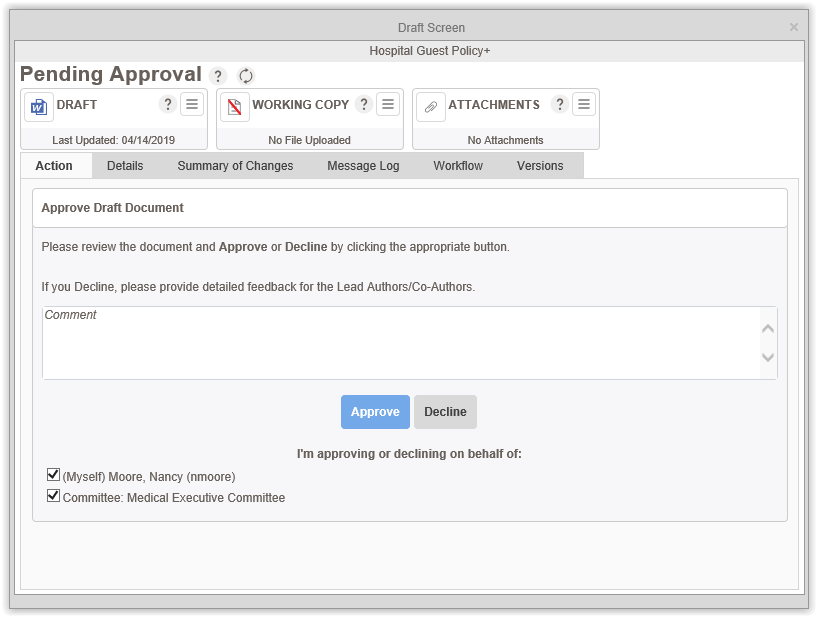
It should be noted that a user that is assigned to a committee can also be assigned as an approver separately from the committee. If this is the case, the Draft Screen will contain checkboxes so the user can then chose whether they want to approve as themselves, on behalf of their committee, or both.
Post your comment on this topic.