

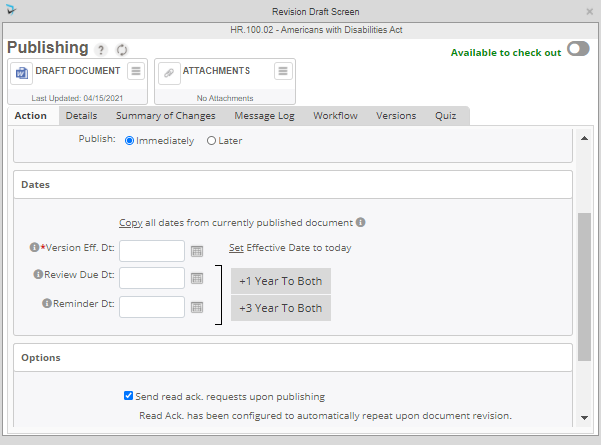
The moderator or system administrator has the ability to publish a document after being accepted by all the approvers. To do this, the moderator will access the Draft Screen via Reminders, Control Panel, the Document Menu, or through an email reminder. The Draft Screen for the Publishing step is shown below.
Viewing Draft and Replace/Convert Document
The moderator can take one last look at the draft that is to be published by clicking on the Draft Document icon. To the right of the draft icon, the moderator can click on the menu for the draft and replace the document if there were any spelling or formatting errors by selecting Replace. At the same time, they can convert the document to a PDF if the original draft is a Microsoft Word document.
Title and Description
If needed, the user may edit the document title or description prior to publishing. The user can also select if the document should be published immediately or on another date by choosing Immediately or Later.
Setting Key Dates
Before publishing the document, the moderator must define the Version Effective Date which is the date when this version of the policy will be effective. Users may also click on the “Set Effective Date to today” to insert today’s date. Other dates that the moderator needs to modify are the “Next Review Date* and Reminder Date for the next review cycle.
Clicking Copy all dates from currently published document will set the effective, reminder, and review dates to the currently published version of the document. You can then used one of the +X Year to Both buttons to add 1, 2, or 3 years to the review due date and reminder date.
Options/Publishing
- Send read ack. requests to these users upon publishing – select this if you want to require read acknowledgments from the group assigned as Policy Readers.
To publish the document, the moderator simply clicks on the publish button at the bottom of the Draft Screen.
Post your comment on this topic.