

Adding a new Folder
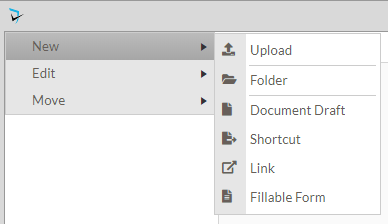
To add a new folder, click on the Folder Menu ( ) for the parent folder, click New, then select Folder. You may also set some settings that will override the settings that were specified on the parent folder or component level by accessing the Advanced tab. Please see the Folder Settings article in this manual to learn more about how to override settings and role assignments.
A Create New Folder popup screen is displayed, where the name of the folder and a description (optional) is entered.
Other options on the Create New Folder screen include:
- Folder is also a document – When checked, the folder can have a document associated with it.
- Collapse Folder – If checked, this folder will be collapsed in the view. Users will click the + icon to the left of the folder to view the contents.
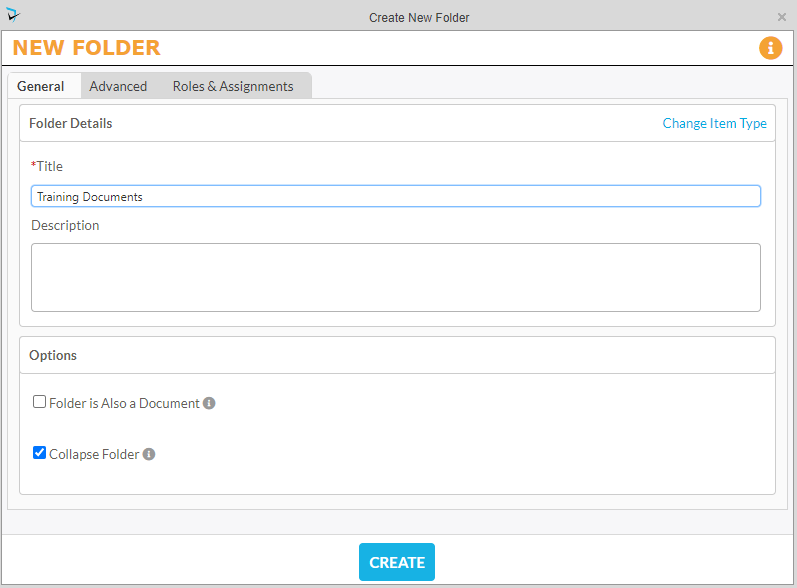
Click Apply & Close to save the new folder.
Adding a New Document
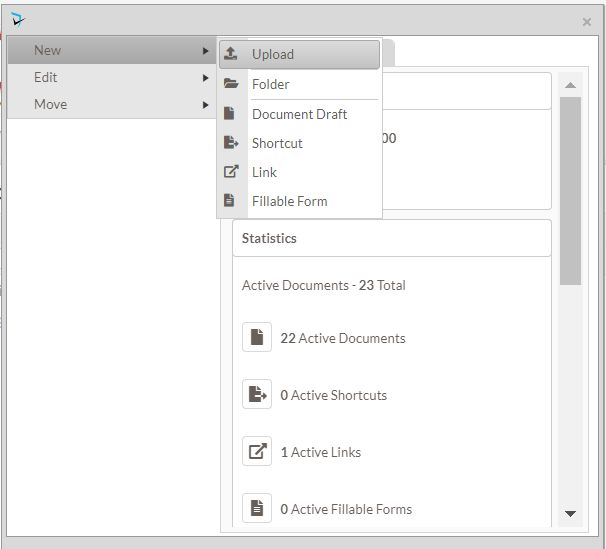
There are two methods of adding documents to the Policies. Existing documents can be added using the Upload option found in the New menu on the info card. If no document currently exists but needs to be built, the Document Draft option enables moderators to start the creation of a new document from scratch. In this guide we will discuss adding an existing document, though the steps are very similar to add a new document draft.
The Upload Document screen appears. The Upload button opens Windows Explorer, where the user can select the document to upload. To upload multiple documents, the user can hold the Ctrl key on the keyboard and click each file to be uploaded.
Next, the user must specify if this document should be uploaded and published, or uploaded as a draft.
- Upload and Publish – The document will be uploaded and published to the system, available to view by all document viewers.
- When selected, the user must enter the date this version became effective. They may also add the next review and reminder dates if known. The user can also select to have a Word document converted to PDF when published, to save the existing word document as a Working Copy, and to send Read Acknowledgement requests to default Policy Readers.
- Upload as Draft – The document will be uploaded, but must go through the revision workflow before being published. The draft document is only visible to workflow participants.
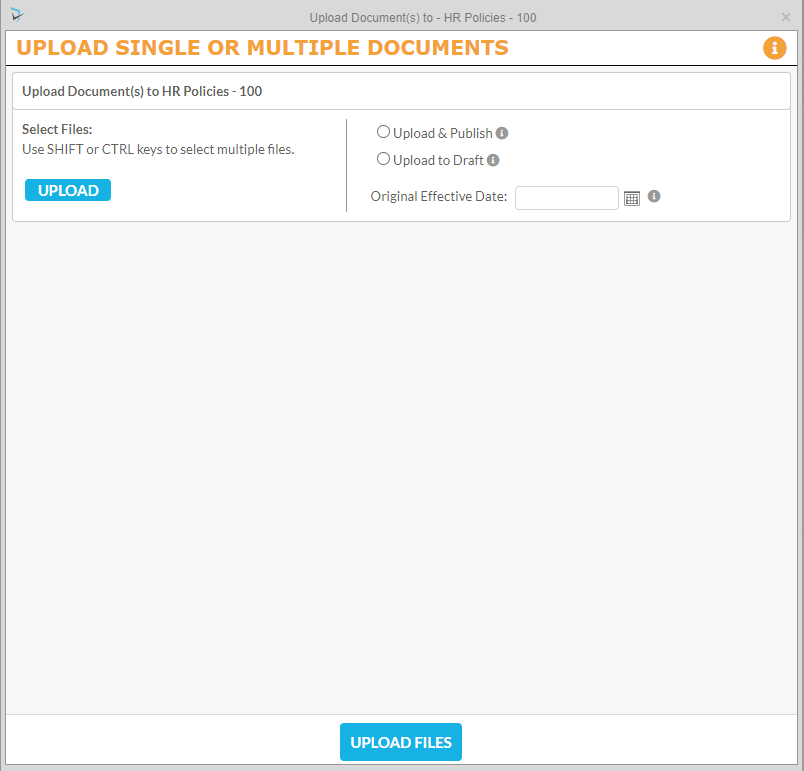
Click Upload Files to complete the process.
Post your comment on this topic.