

The Form Builder is a simple to use tool that Portal Administrators can create and manage their portal’s form templates. It can be accessed one of two ways:
- Administration Menu – Login as a Portal Administration and go to the Administration link at the top of the screen. Then Click on the Forms link. Clicking on the Add New Form (
![]() ) button.
) button.
 ) button.
Once you click on the new icon, you will be presented with the Form Builder page. Define the following information:
- Form Title – (Required) The name of the form that will display on the form on the page that end users will see
- Hide title – Check this checkbox if you plan on showing the component title of the Form component when publishing the form on a portal page.
- Identification – (Required) The unique form name that only administrators and editors will see
- Description – You may also provide a description if needed.
- Visibility – Allow all users to view the page once published, or only show to Authenticated users
- Anonymous Submissions – If checked, form submissions will not store user information for fully anonymous submissions.
- (Optional) Maximum Number of Allowed Submissions per user – Used for setting the maximum number of submissions allowed by each authenticated user of the system. Enter 0 or leave blank if there is no limit on submissions.
Clicking Create will give you the Form Layout tab where you can start building your form template as shown below:
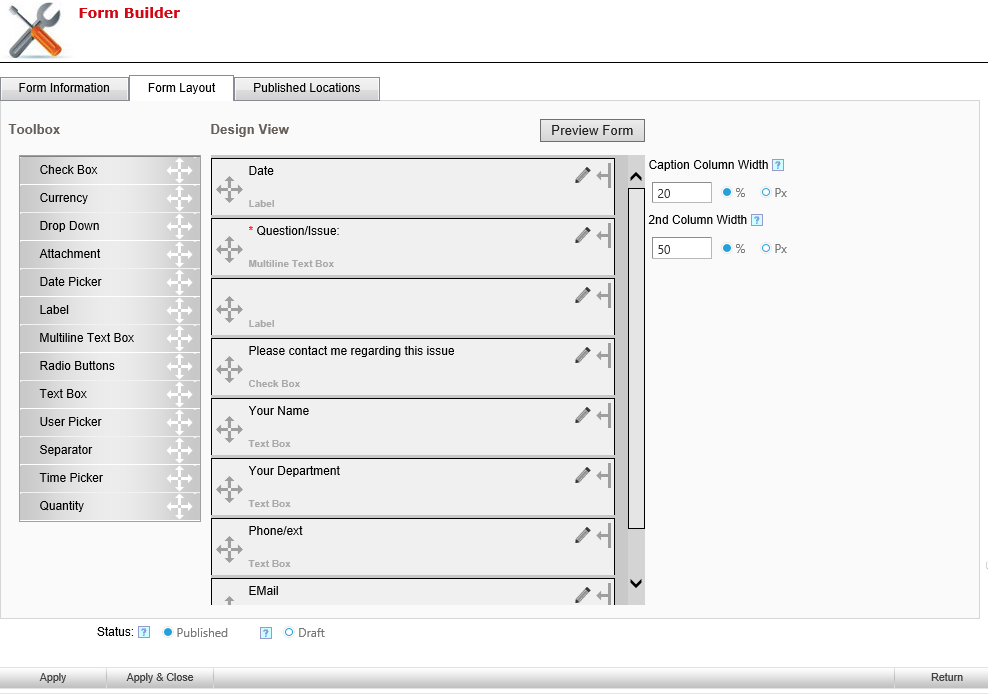
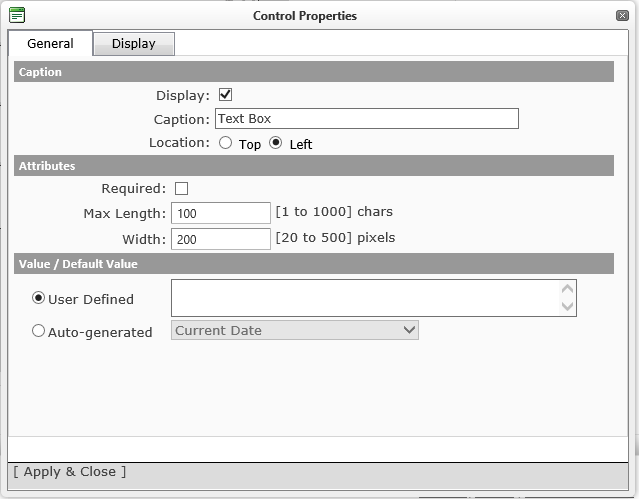
The Toolbox on the right of this screen has the different fields that you can add to your form. To add a field to your form, pick the type that you want and drag it to the Design View. This will cause a popup to show that will have places where you can define properties for the field.
- Caption (label)
- Checkbox to make the field Required
- Width in px of the field
- Character limit (for text boxes)
- Default Values – Depending on the control you can have system defined system default values (textboxes) or you can decide your own.
If you are using dropdown lists or radio buttons, the selections can be inputted in the Data tab in this popup
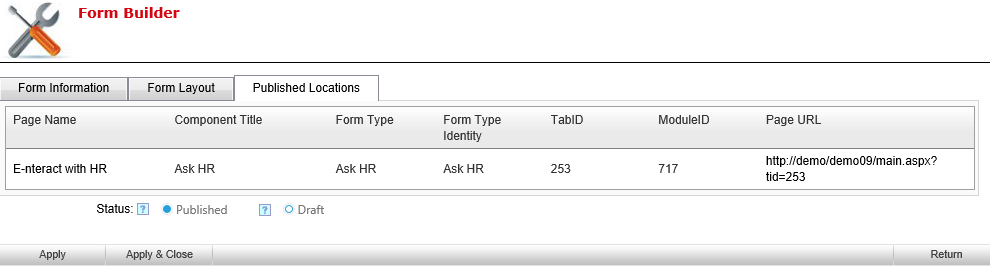
Published Locations
This tab will show all the locations that this form template is currently published.
Post your comment on this topic.