

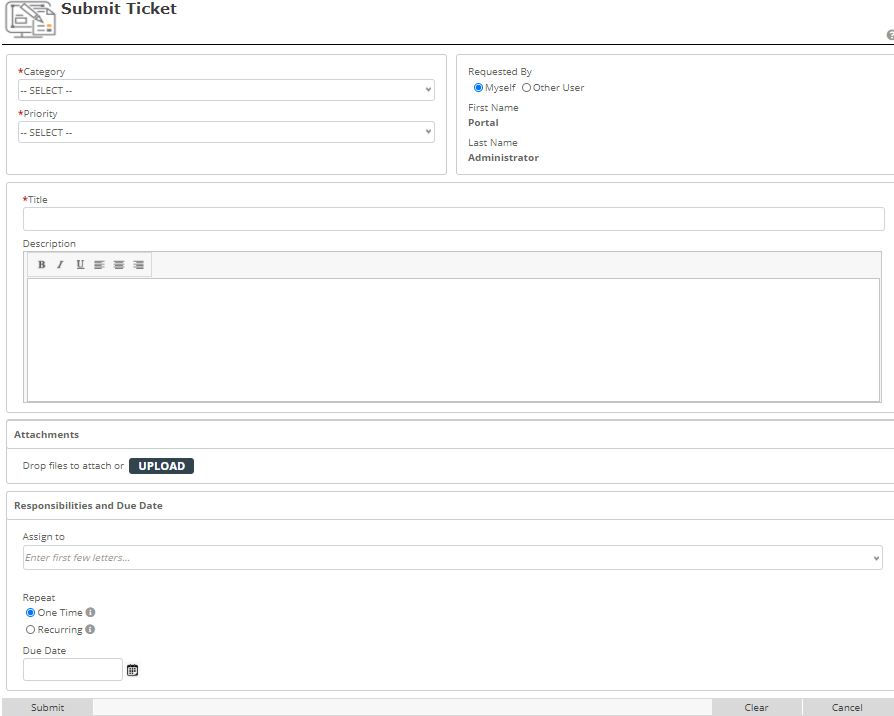
The following screen is used to submit a ticket. User’s name, category, priority, and short description are required to submit a ticket. Submitters may upload files (i.e. screen shots, pictures, files, etc.) to help explain issue at hand by clicking Upload or dragging and dropping the file on the ticket. To submit this ticket, click Submit. To clear the submission form, click Clear. To cancel the submission, click Cancel.
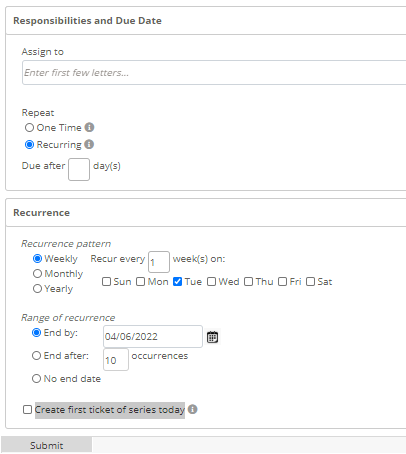
Recurring tickets can be created for any routine tasks to be performed:
- In the Responsibilities and Due Date section, select the radio button for Recurring
- The recurrence criteria fields will display – indicate the recurrence pattern and range of recurrence
- If the first ticket for this series should be opened with the current date, check the box to “Create first ticket of series today”
- Click Submit to open the new recurring ticket
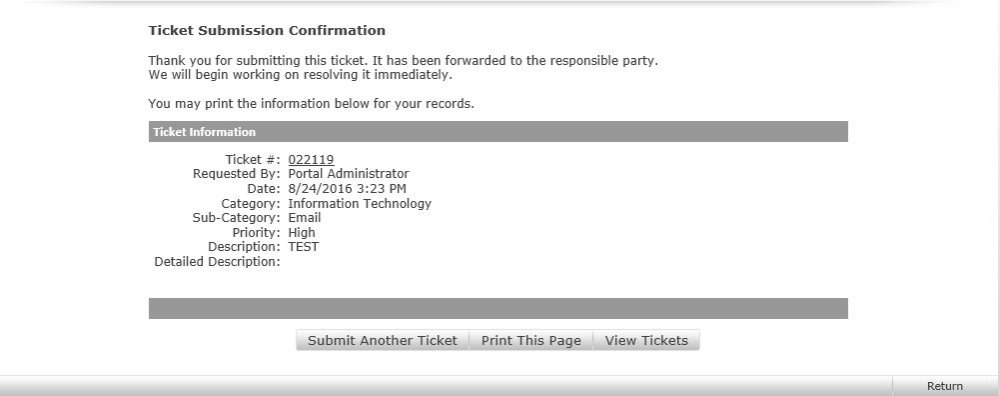
After submission, a confirmation screen is displayed with the summary. To submit another ticket, click the [Submit Another Ticket] link. To leave the Ticket Tracking System, click Return Home. To print this page click, Print This Page. To search tickets, click View Tickets.
← Ticket Tracking Setup ……………………. Searching and Viewing Tickets →
Post your comment on this topic.