

- Administrators may select a user to modify by selecting the user’s login name from the list of available users, or by searching for the user record using the search filters at the top of the screen.
- To access the User Profile, users will click the edit icon (
![]() ) to the left of the user’s name.
) to the left of the user’s name. - Users may edit any information as needed. See below for a description of each field on the screen.
- The user will click Apply or Apply & Close when done making changes.
 ) to the left of the user’s name.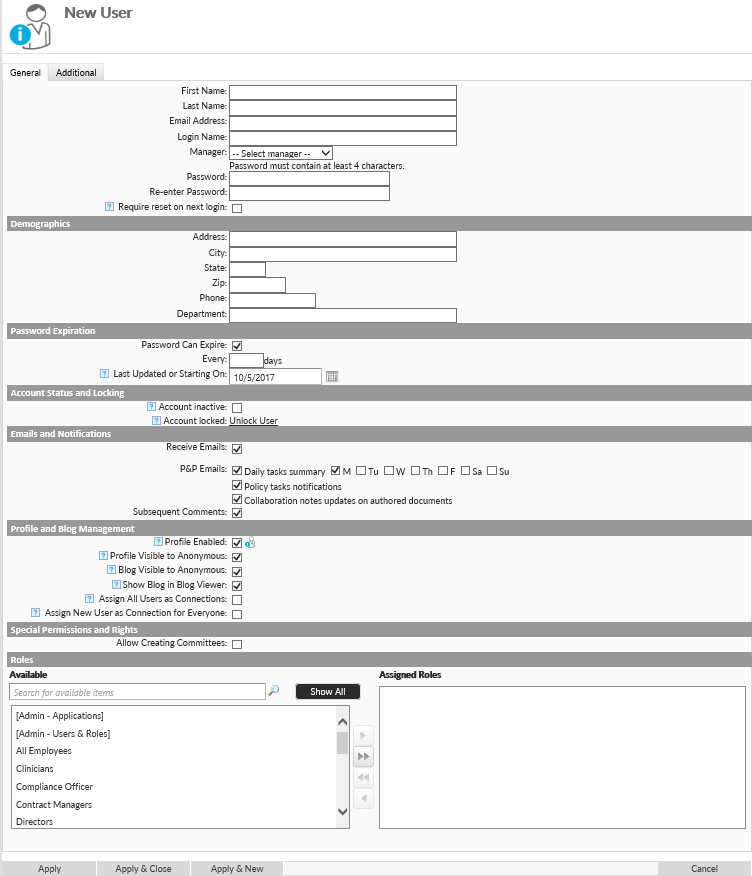
The first section on this page and the Demographics section will be populated automatically if using Active Directory integration. For forms based authentication, Portal Administrators have the ability to change any of these fields. Additional fields that function for Forms based authentication customers only include
- Reset Password
- Prompts to enter and re-enter the new password will appear when checked
- Enter the new password
- Re-enter the new password
- Require reset on next login – If checked, the user will be required to reset their password the next time they log in. They will be brought to a reset password screen immediately after putting in their credentials.
- Reset secret answers – If checked, the user will have to answer security questions upon login so they can use them to recover their password if forgotten.
- Account Status and Locking
- Account Inactive – If checked, this user will be deactivated on the portal and not able to log in. This option prevents the user from logging in while maintaining their workflow contributions on any previous document
- Account Locked – If a user has entered the incorrect password too many times, the system will lock their profile. USer can click this link to unlock the password.
Other options available regardless of authentication type include:
- Emails and Notifications
- Receive Emails – Enables system emails for the user.
- P&P Emails – Specifies which P&P emails this user will receive.
- Daily Task Summary – Email that goes out on a specified day of the week with a summary of P&P tasks.
- Policy Tasks Notifications – Emails that go out when a document the user is assigned to requires their action in the workflow.
- Collaboration notes updates on authored documents – Emails authors when someone adds comments in the “Collaboration and Messages” section of the P&P Draft Screen.
- Subsequent Comments – will send emails when some else replies to the same item as this user has commented on.
- Profile and Blog Management
- Profile Enabled – Enables the user to modify their User Profile
- Profile Visible to Anonymous – If checked, users that aren’t logged in will be able to search for and view this user’s profile.
- *Blog Visible to Anonymous*- If checked, users that aren’t logged in will be able to search for and view this user’s blog posts.
- Show Blog in Blog Viewer – Enables the user’s blogs to display in the blog viewer.
- Special Permissions and Rights
- Allow Creating Committees – When checked, this user is able to create P&P committees for the review or approval workflow stages.
- Roles – Adds the user to the security roles for edit and viewing access. This is only available to portals that don’t sync user roles with Active Directory.
Last modified:
Jul 10, 2023
Post your comment on this topic.